







Access Live SAS xpt Data in Excel 365 Online (Excel for the web)

Microsoft Excel for the web represents a cloud-native iteration of Microsoft Excel. When integrated with CData Connect AI, you gain immediate access to SAS xpt data directly from within Excel. This access facilitates data analysis, collaborative work, calculations, and more. This article provides a step-by-step guide on connecting to SAS xpt within your Connect AI instance and accessing live SAS xpt data in Excel for the web spreadsheets, whether for viewing or updating purposes.
CData Connect AI provides a pure cloud-to-cloud interface for SAS xpt, allowing you to easily access live SAS xpt data in Excel for the web. Simply use the Connect AI Add-In to query live data (or write your own). Using optimized data processing out of the box, CData Connect AI pushes all supported query operations (filters, JOINs, etc) directly to SAS xpt, leveraging server-side processing to quickly return SAS xpt data.
This setup requires a CData Connect AI instance and the CData Connect AI Add-In for Excel. To get started, sign up a free trial of Connect AI and install the free Connect AI Excel Add-In.
Configure SAS xpt Connectivity for Excel
Connectivity to SAS xpt from Excel is made possible through CData Connect AI. To work with SAS xpt data from Excel, we start by creating and configuring a SAS xpt connection.
- Log into Connect AI, click Sources, and then click Add Connection
- Select "SAS xpt" from the Add Connection panel
-
Enter the necessary authentication properties to connect to SAS xpt.
Connecting to Local SASXpt Files
You can connect to local SASXpt file by setting the URI to a folder containing SASXpt files.
Connecting to S3 data source
You can connect to Amazon S3 source to read SASXpt files. Set the following properties to connect:
- URI: Set this to the folder within your bucket that you would like to connect to.
- AWSAccessKey: Set this to your AWS account access key.
- AWSSecretKey: Set this to your AWS account secret key.
- TemporaryLocalFolder: Set this to the path, or URI, to the folder that is used to temporarily download SASXpt file(s).
Connecting to Azure Data Lake Storage Gen2
You can connect to ADLS Gen2 to read SASXpt files. Set the following properties to connect:
- URI: Set this to the name of the file system and the name of the folder which contacts your SASXpt files.
- AzureAccount: Set this to the name of the Azure Data Lake storage account.
- AzureAccessKey: Set this to our Azure DataLakeStore Gen 2 storage account access key.
- TemporaryLocalFolder: Set this to the path, or URI, to the folder that is used to temporarily download SASXpt file(s).

- Click Save & Test
-
Navigate to the Permissions tab in the Add SAS xpt Connection page and update the User-based permissions.



With the connection configured, you are ready to connect to SAS xpt data from Excel for the web.
Access Live SAS xpt Data in Excel for the web
The steps below outline connecting to CData Connect AI from Excel to access live SAS xpt data.
- Log into Excel, create a new sheet (or open an existing one).
- Click Insert and click Office Add-ins. (if you have already installed the Add-In, jump to step 4).
- Search for CData Connect Spreadsheets Add-In and install the Add-in.
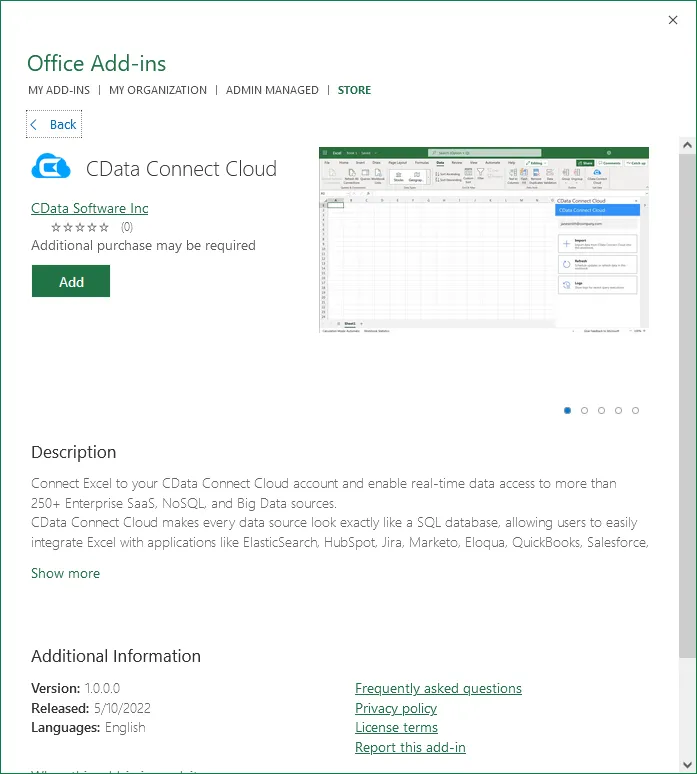
- Click Data and open the CData Connect Spreadsheets Add-In.
- In the Add-In panel, click Login or Sign-up to authenticate with your CData Connect AI instance
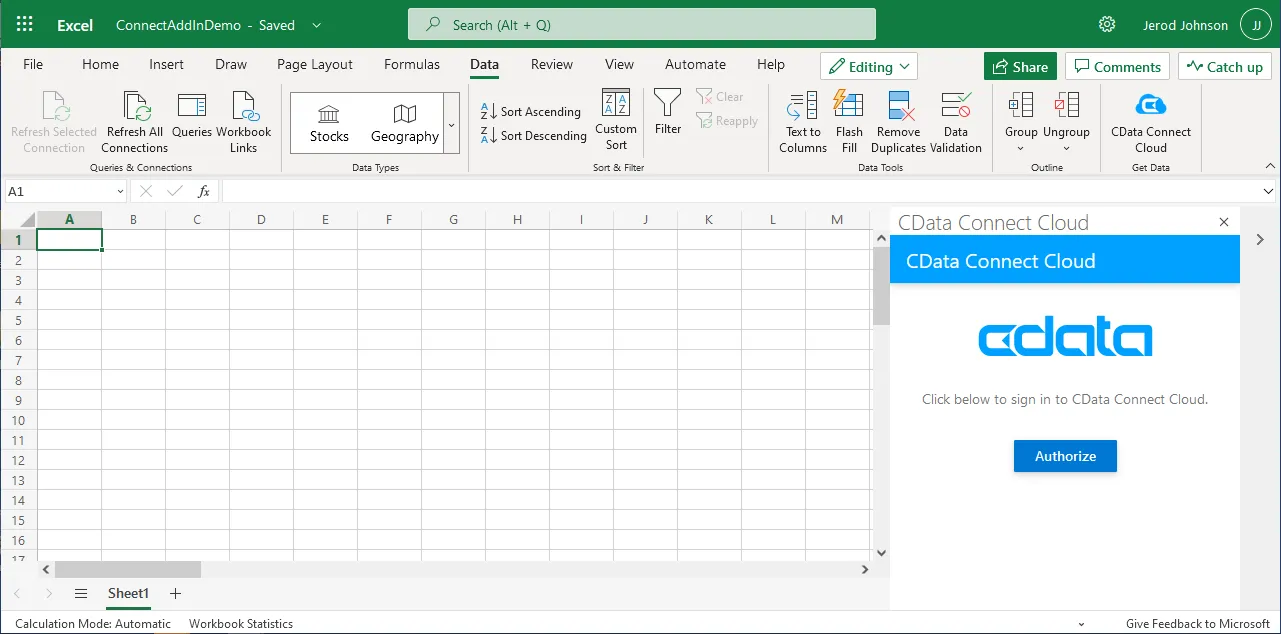
- In the CData Connect Spreadsheets panel in Excel, click Import
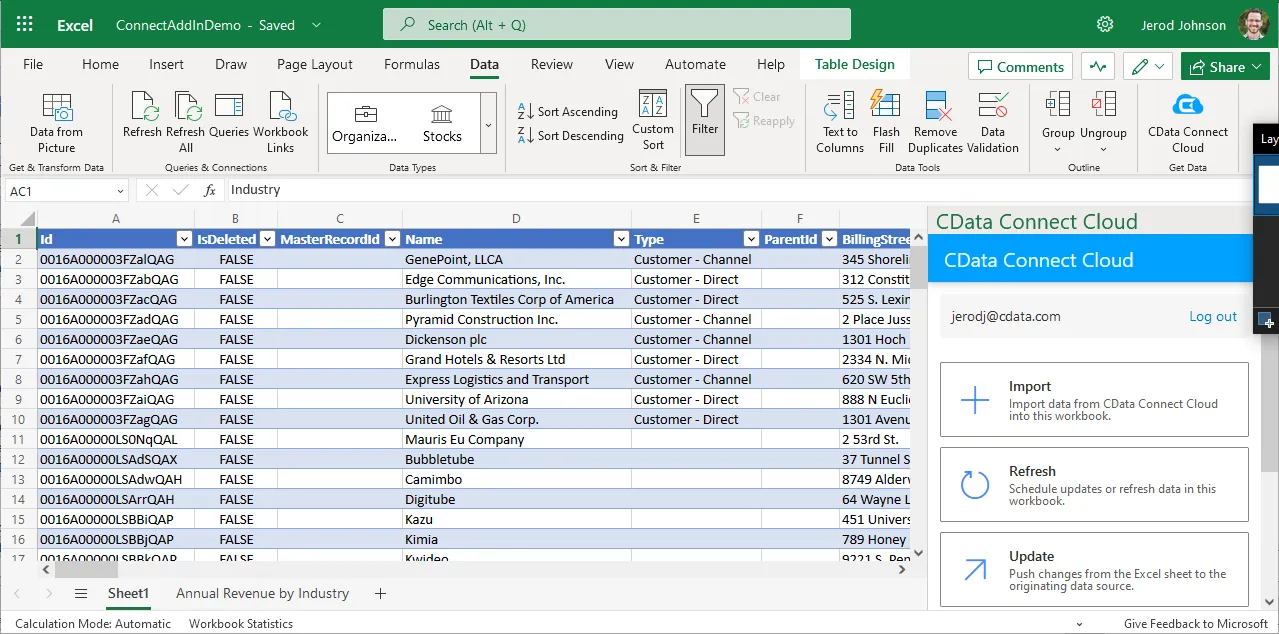
- Choose a Connection (e.g. SASXpt1), Table (e.g. SampleTable_1), and Columns to import
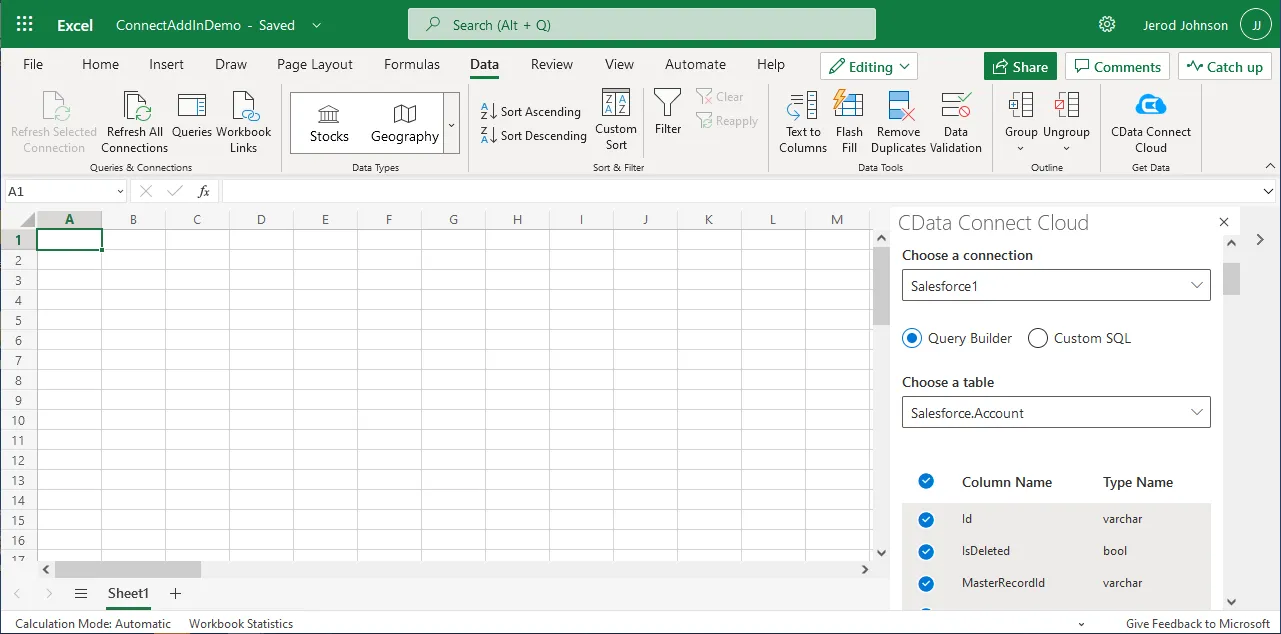
- Optionally add Filters, Sorting, and a Limit
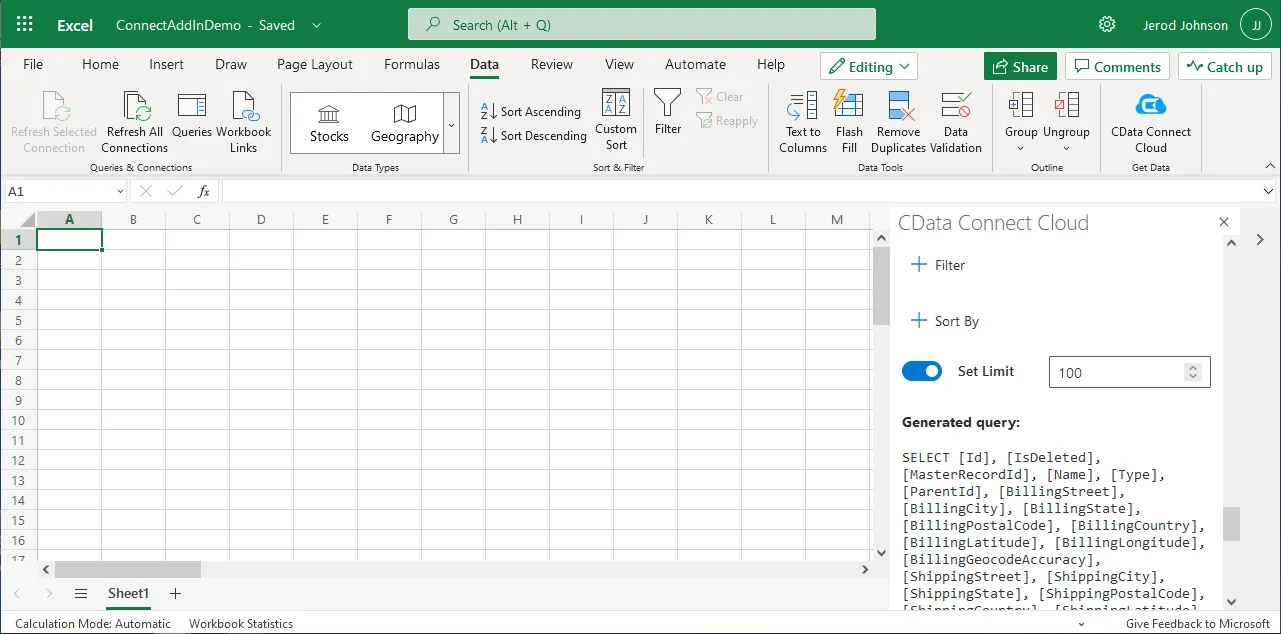
- Click Execute to import the data
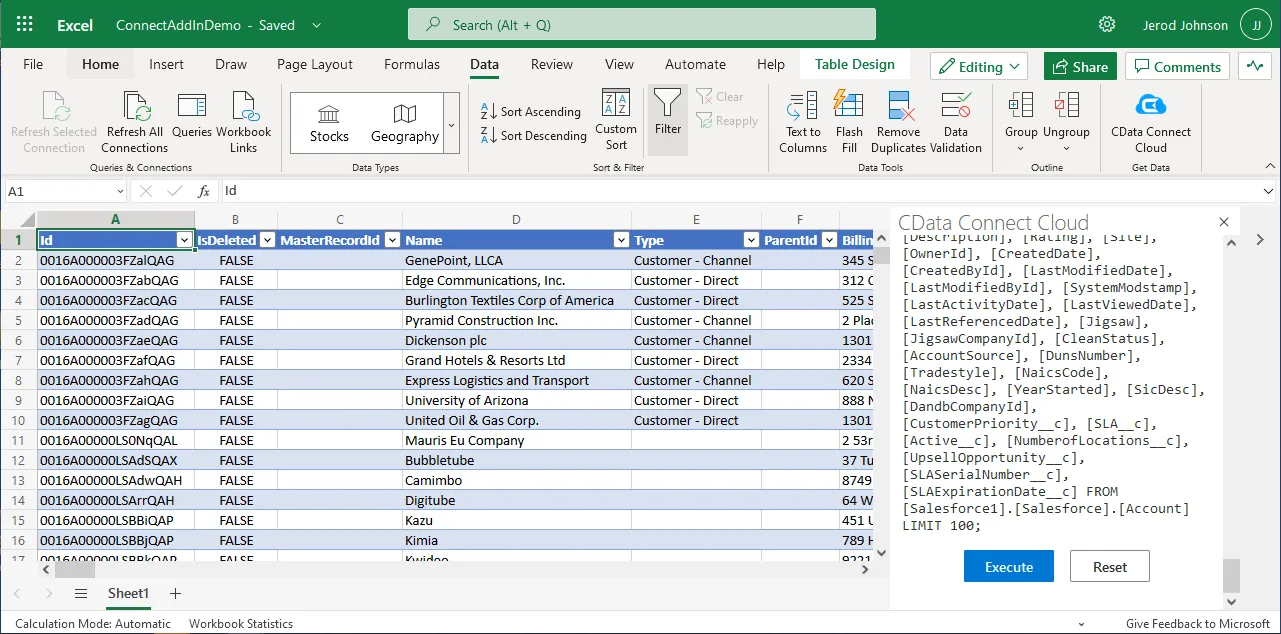
Live Access to SAS xpt Data from Cloud Applications
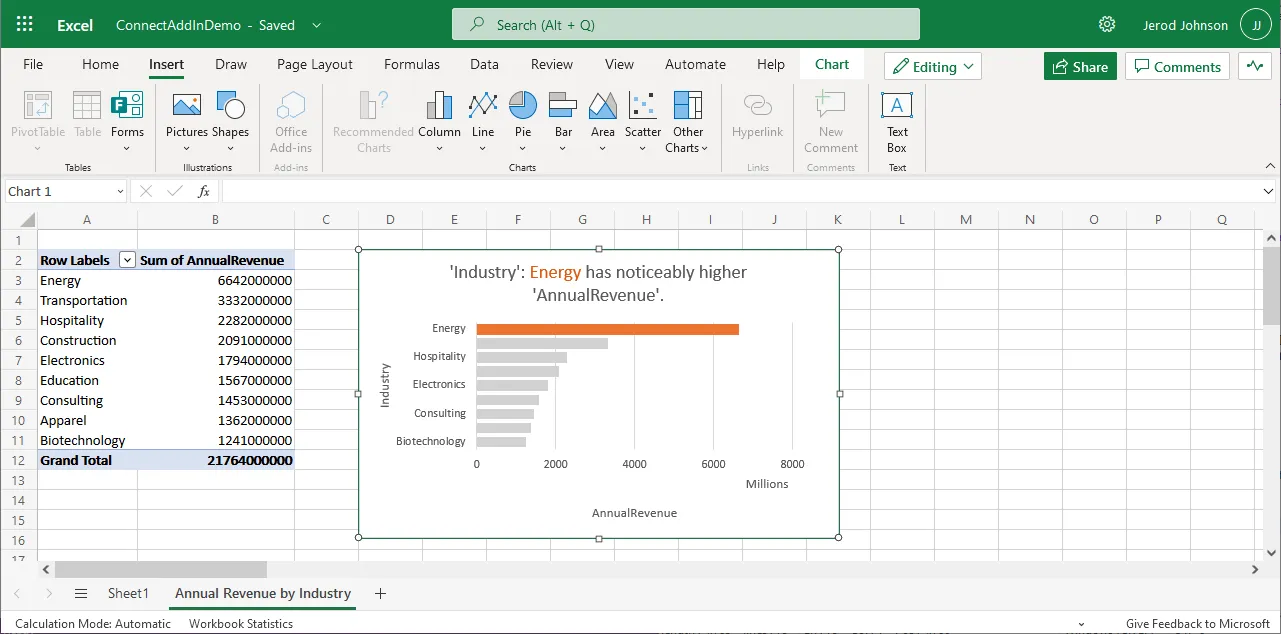
New, you have a direct, cloud-to-cloud connection to live SAS xpt data from your Excel workbook. You can add more data to your workbook for calculations, aggregations, collaboration, and more.
Try CData Connect AI and get real-time data access to hundreds of SaaS, Big Data, and NoSQL sources directly from your cloud applications.