







Create Data Visualizations Based On SAS xpt Data in Mode

Mode is a collaborative data platform that combines SQL, R, Python, and visual analytics in one place. When paired with CData Connect AI, you get instant, cloud-to-cloud access to SAS xpt data for use in data visualizations. This article shows how to connect to SAS xpt in Connect AI, connect to SAS xpt data in Mode, and create a simple visualization using that data.
CData Connect AI provides a pure cloud-to-cloud interface for SAS xpt, allowing you to build data visualizations from live SAS xpt data in Mode — without replicating the data to a natively supported database. In order to create visualizations, users write SQL queries to gather data. Using optimized data processing out of the box, CData Connect AI pushes all supported SQL operations (filters, JOINs, etc.) directly to SAS xpt, leveraging server-side processing to quickly return the requested SAS xpt data.
Configure SAS xpt Connectivity for Mode
Connectivity to SAS xpt from Mode is made possible through CData Connect AI. To work with SAS xpt data from Mode, we start by creating and configuring a SAS xpt connection.
- Log into Connect AI, click Sources, and then click Add Connection
- Select "SAS xpt" from the Add Connection panel
-
Enter the necessary authentication properties to connect to SAS xpt.
Connecting to Local SASXpt Files
You can connect to local SASXpt file by setting the URI to a folder containing SASXpt files.
Connecting to S3 data source
You can connect to Amazon S3 source to read SASXpt files. Set the following properties to connect:
- URI: Set this to the folder within your bucket that you would like to connect to.
- AWSAccessKey: Set this to your AWS account access key.
- AWSSecretKey: Set this to your AWS account secret key.
- TemporaryLocalFolder: Set this to the path, or URI, to the folder that is used to temporarily download SASXpt file(s).
Connecting to Azure Data Lake Storage Gen2
You can connect to ADLS Gen2 to read SASXpt files. Set the following properties to connect:
- URI: Set this to the name of the file system and the name of the folder which contacts your SASXpt files.
- AzureAccount: Set this to the name of the Azure Data Lake storage account.
- AzureAccessKey: Set this to our Azure DataLakeStore Gen 2 storage account access key.
- TemporaryLocalFolder: Set this to the path, or URI, to the folder that is used to temporarily download SASXpt file(s).

- Click Save & Test
-
Navigate to the Permissions tab in the Add SAS xpt Connection page and update the User-based permissions.



Add a Personal Access Token
When connecting to Connect AI through the REST API, the OData API, or the Virtual SQL Server, a Personal Access Token (PAT) is used to authenticate the connection to Connect AI. It is best practice to create a separate PAT for each service to maintain granularity of access.
- Click on the Gear icon () at the top right of the Connect AI app to open the settings page.
- On the Settings page, go to the Access Tokens section and click Create PAT.
-
Give the PAT a name and click Create.

- The personal access token is only visible at creation, so be sure to copy it and store it securely for future use.
With the connection configured and a PAT generated, you are ready to connect to SAS xpt data from Mode.
Connect to SAS xpt in Mode
The steps below outline connecting to CData Connect AI from Mode to create a new SAS xpt data source.
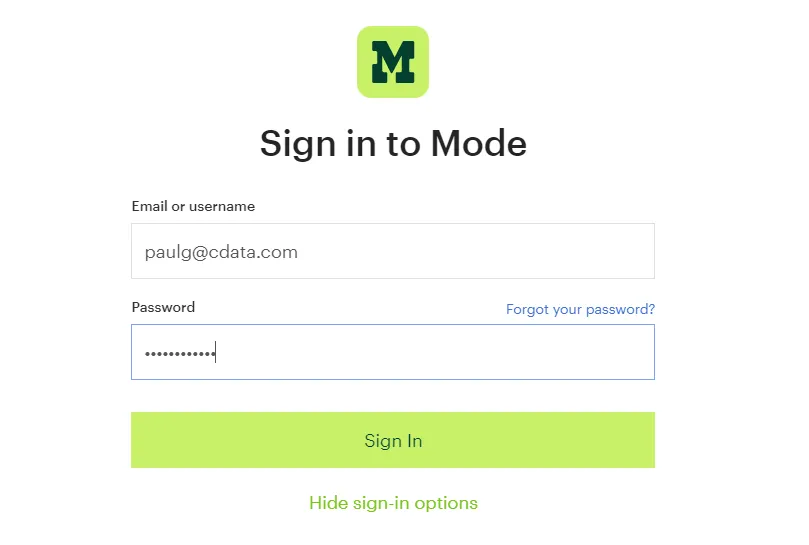
- Log-in to Mode
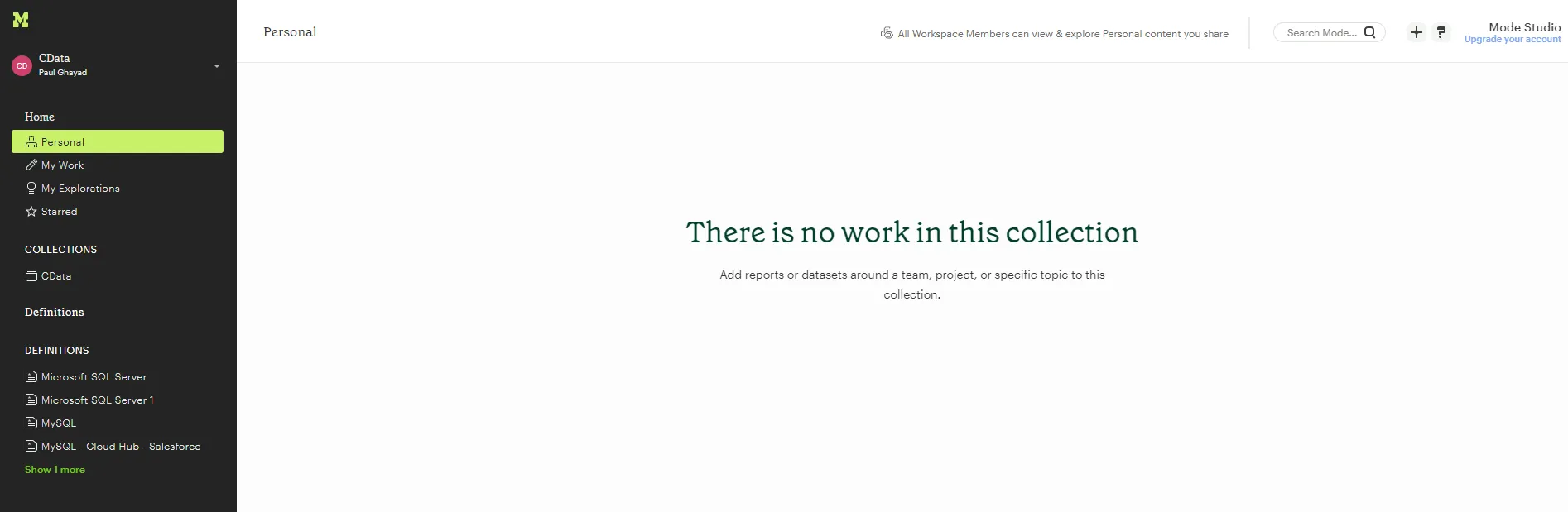
- In the top-left corner of the screen, click the down-arrow next to your name and select Connect a Database...
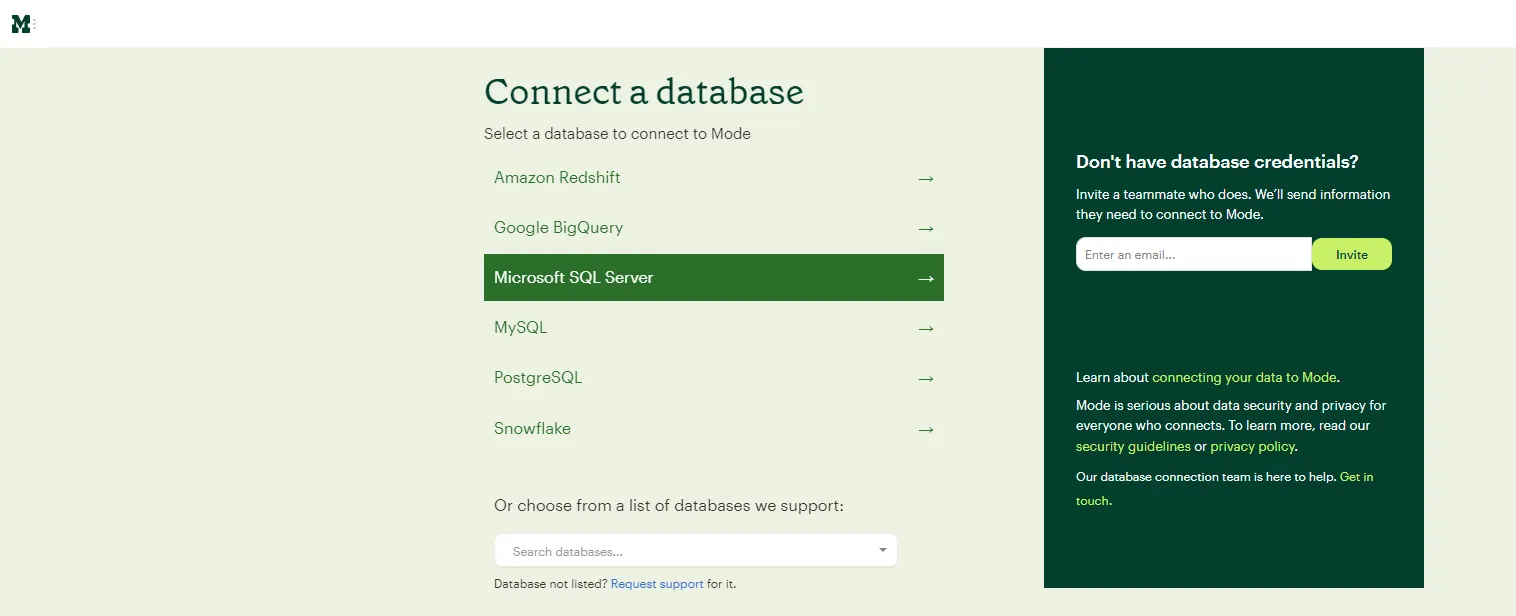
- On the next screen, select Microsoft SQL Server.
- Enter the Microsoft SQL Server credentials:
- Display Name: the name for the connection.
- Host/Port: enter tds.cdata.com in the Host field and 14333 in the Port field.
- Database name: enter the Connection Name of the CData Connect AI data source you want to connect to (for example, SASXpt1).
- Username: enter your CData Connect AI username. This is displayed in the top-right corner of the CData Connect AI interface. For example, [email protected]
- Password: enter the PAT you generated on the Settings page
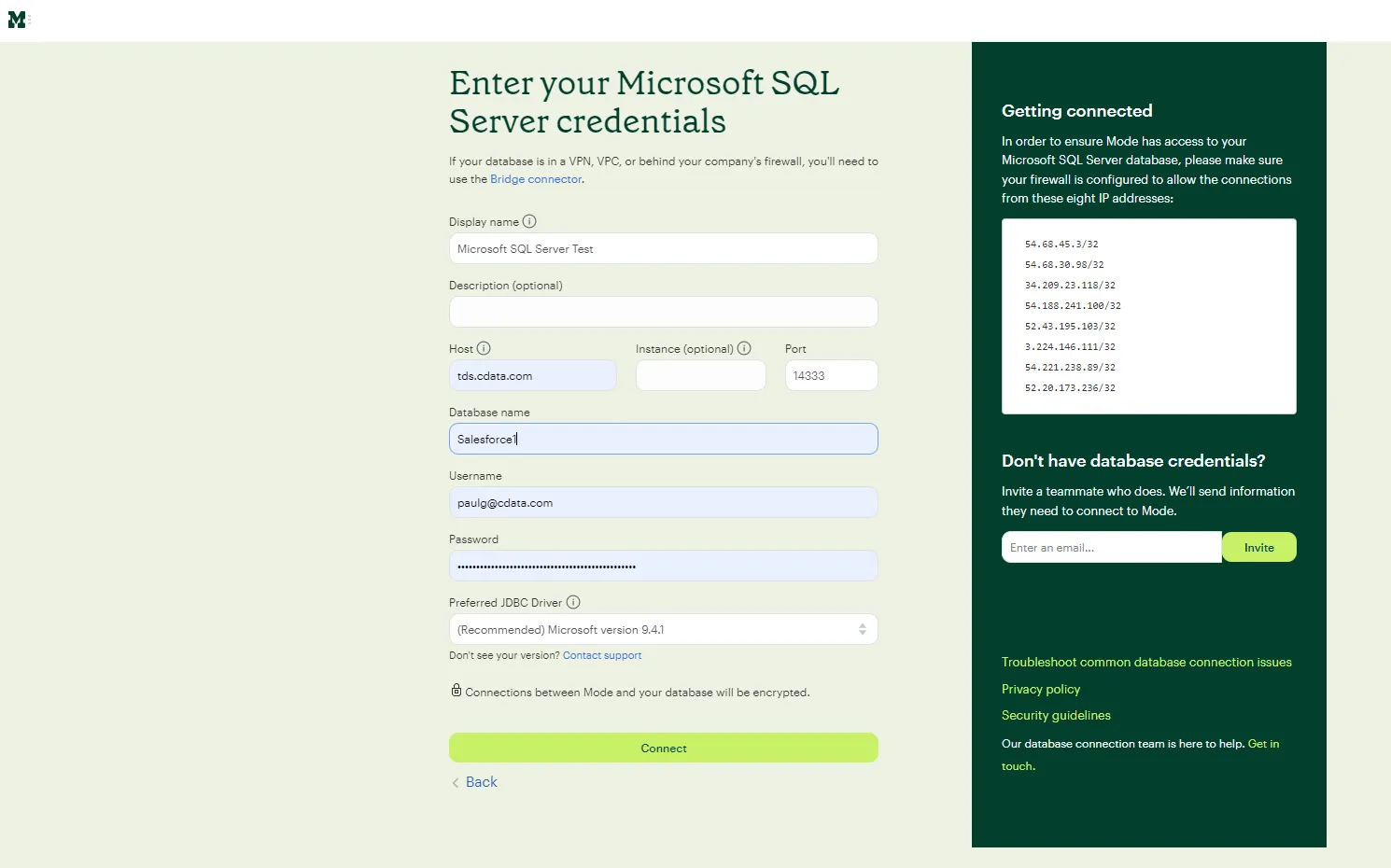
- At the bottom of the page, click Connect to ensure that you can connect to CData Connect AI.
- Upon success, the following screen appears.
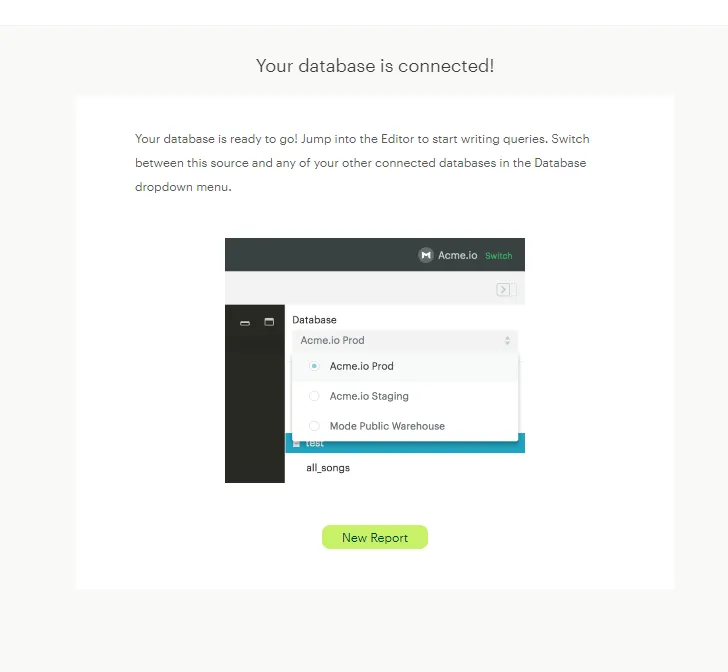
Your connection is now available for use in Mode. To connect to additional data sources from your CData Connect AI account, repeat the setup steps above, changing the value for Database for each data source.
Creating A Mode Visualization
To create a visualization in Mode, follow these steps:
- On the current screen, click New Report. The SQL query text editor appears.
Enter the following query:
SELECT * FROM [SASXpt].[SampleTable_1];
Click Run. The app now shows the query result: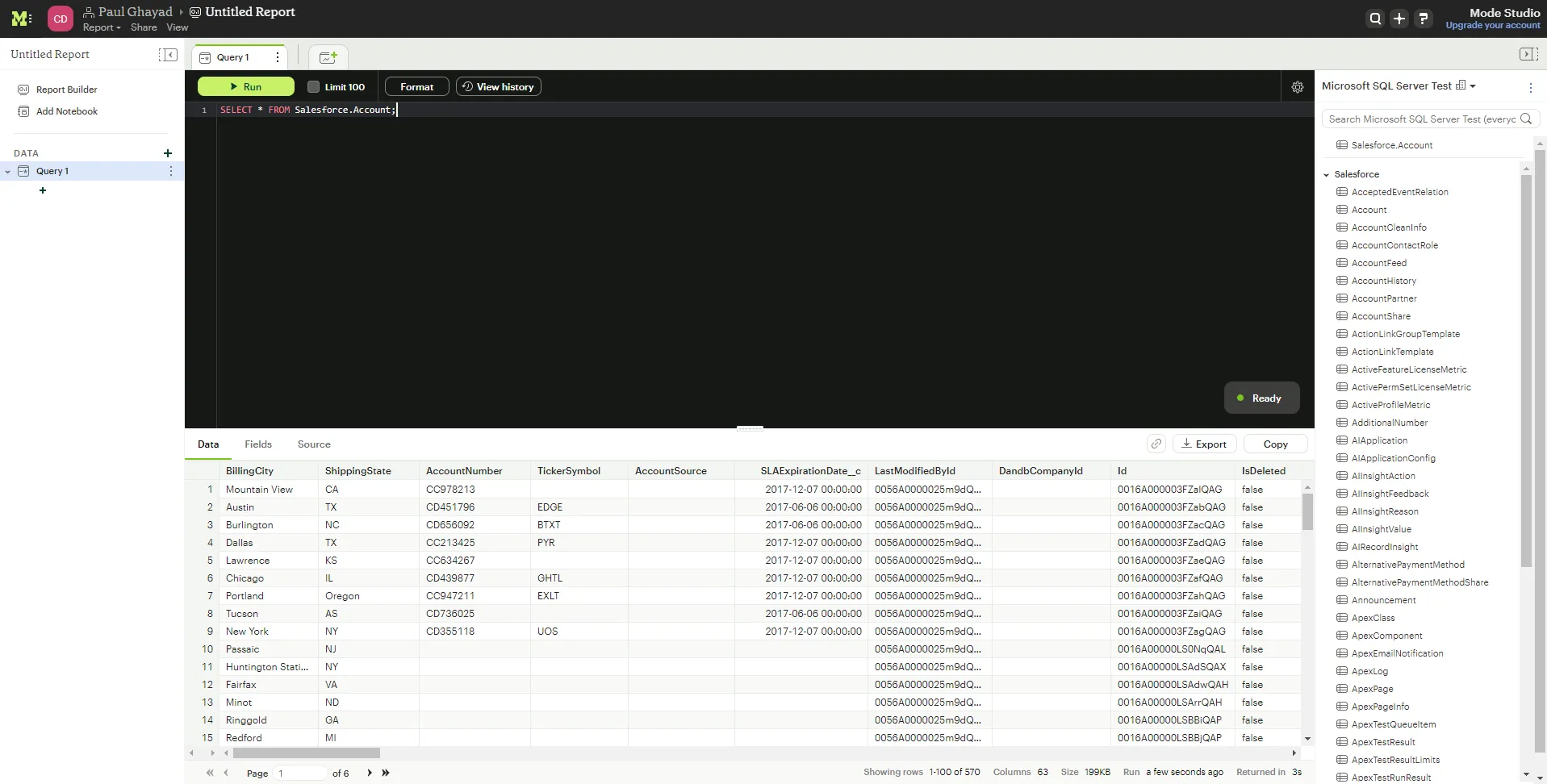
- Running the query activates the New Chart tab. Click this tab and select Pie Chart.
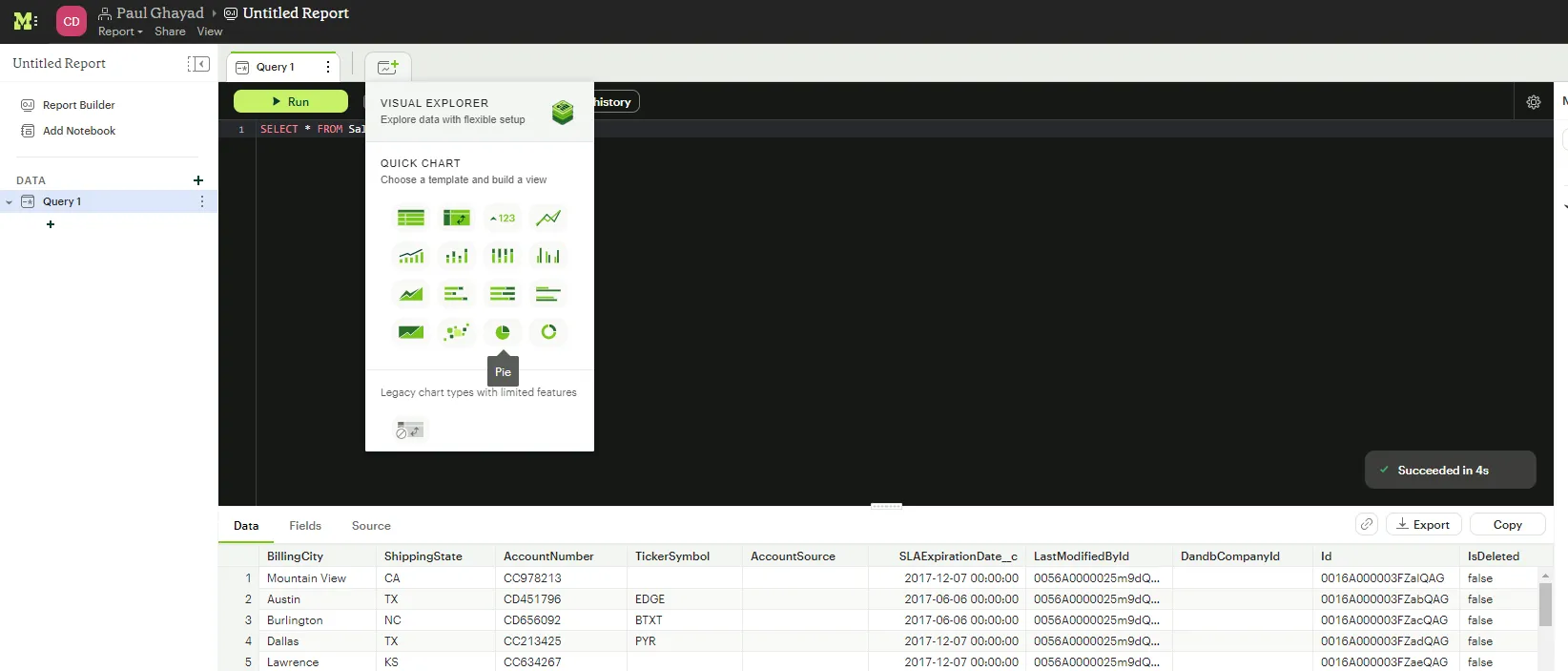
- Now, drop a dimension in the Color section and a measure in the Angle section.
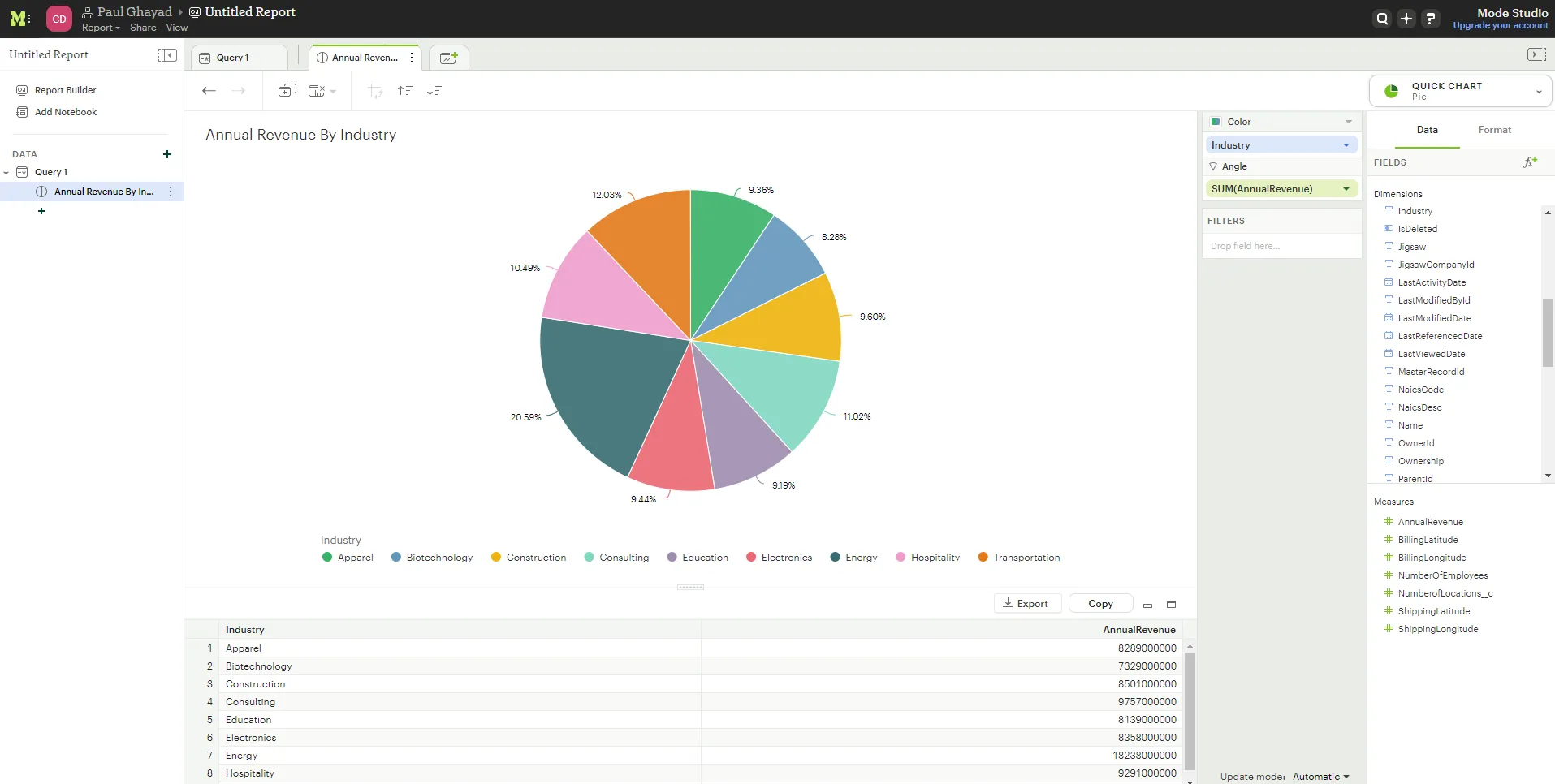
We have now created a visualization of SAS xpt data in Mode using CData Connect AI!
Get CData Connect AI
To get live data access to hundreds of SaaS, Big Data, and NoSQL sources directly from your cloud applications, try CData Connect AI today!