







Access Live SQL Analysis Services Data in Emergent via CData Connect AI

Emergent is an AI-powered development platform that lets users describe what they want to build and have an autonomous agent generate full-stack web applications in real time. Agents can connect to external tools and data sources through MCP to retrieve live data and power their outputs.
By integrating Emergent with CData Connect AI through the built-in MCP (Model Context Protocol) Server, Emergent agents gain governed, real-time access to live SQL Analysis Services data. This enables agents to query, analyze, and visualize SQL Analysis Services data: either by calling MCP tools directly during a session, or by generating a full application wired to live data, all without manual data exports or custom integration code.
This article outlines the steps to configure SQL Analysis Services connectivity in Connect AI, register the CData MCP Server in Emergent, and interact with live SQL Analysis Services data from Emergent.
Step 1: Configure SQL Analysis Services connectivity for Emergent
Connectivity to SQL Analysis Services from Emergent is made possible through CData Connect AI's Remote MCP Server. To interact with SQL Analysis Services data from Emergent, start by creating and configuring a SQL Analysis Services connection in CData Connect AI.
- Log into Connect AI, click Sources, and then click Add Connection
- Select SQL Analysis Services from the Add Connection panel
-
Enter the necessary authentication properties to connect to SQL Analysis Services.
To connect, provide authentication and set the Url property to a valid SQL Server Analysis Services endpoint. You can connect to SQL Server Analysis Services instances hosted over HTTP with XMLA access. See the Microsoft documentation to configure HTTP access to SQL Server Analysis Services.
To secure connections and authenticate, set the corresponding connection properties, below. The data provider supports the major authentication schemes, including HTTP and Windows, as well as SSL/TLS.
-
HTTP Authentication
Set AuthScheme to "Basic" or "Digest" and set User and Password. Specify other authentication values in CustomHeaders.
-
Windows (NTLM)
Set the Windows User and Password and set AuthScheme to "NTLM".
-
Kerberos and Kerberos Delegation
To authenticate with Kerberos, set AuthScheme to NEGOTIATE. To use Kerberos delegation, set AuthScheme to KERBEROSDELEGATION. If needed, provide the User, Password, and KerberosSPN. By default, the data provider attempts to communicate with the SPN at the specified Url.
-
SSL/TLS:
By default, the data provider attempts to negotiate SSL/TLS by checking the server's certificate against the system's trusted certificate store. To specify another certificate, see the SSLServerCert property for the available formats.
You can then access any cube as a relational table: When you connect the data provider retrieves SSAS metadata and dynamically updates the table schemas. Instead of retrieving metadata every connection, you can set the CacheLocation property to automatically cache to a simple file-based store.
See the Getting Started section of the CData documentation, under Retrieving Analysis Services Data, to execute SQL-92 queries to the cubes.

-
HTTP Authentication
- Click Save & Test
- Navigate to the Permissions tab and update user-based permissions



Add a Personal Access Token
A Personal Access Token (PAT) is used to authenticate the connection to Connect AI from Emergent. It is best practice to create a separate PAT for each integration to maintain granular access control.
- Click the gear icon () at the top right of the Connect AI app to open Settings
- On the Settings page, go to the Access Tokens section and click Create PAT
- Give the PAT a descriptive name and click Create
- Copy the token when displayed and store it securely. It will not be shown again

With the SQL Analysis Services connection configured and a PAT generated, Emergent can now connect to SQL Analysis Services data through Connect AI.
Step 2: Configure Connect AI in Emergent
CData Connect AI can be integrated with Emergent in two ways depending on your account tier. Pro and Enterprise users can register the MCP Server directly in the Emergent UI, while free-tier users can describe the integration in natural language and have Emergent's agent build a connected application automatically.
Method 1: Direct MCP Configuration (Pro/Enterprise)
Pro and Enterprise users can register the CData Connect AI MCP Server directly in the Emergent UI. Once registered, agents in any project can call live SQL Analysis Services data through MCP tools without additional setup.
- Sign in to Emergent and create an account if you do not already have one
-
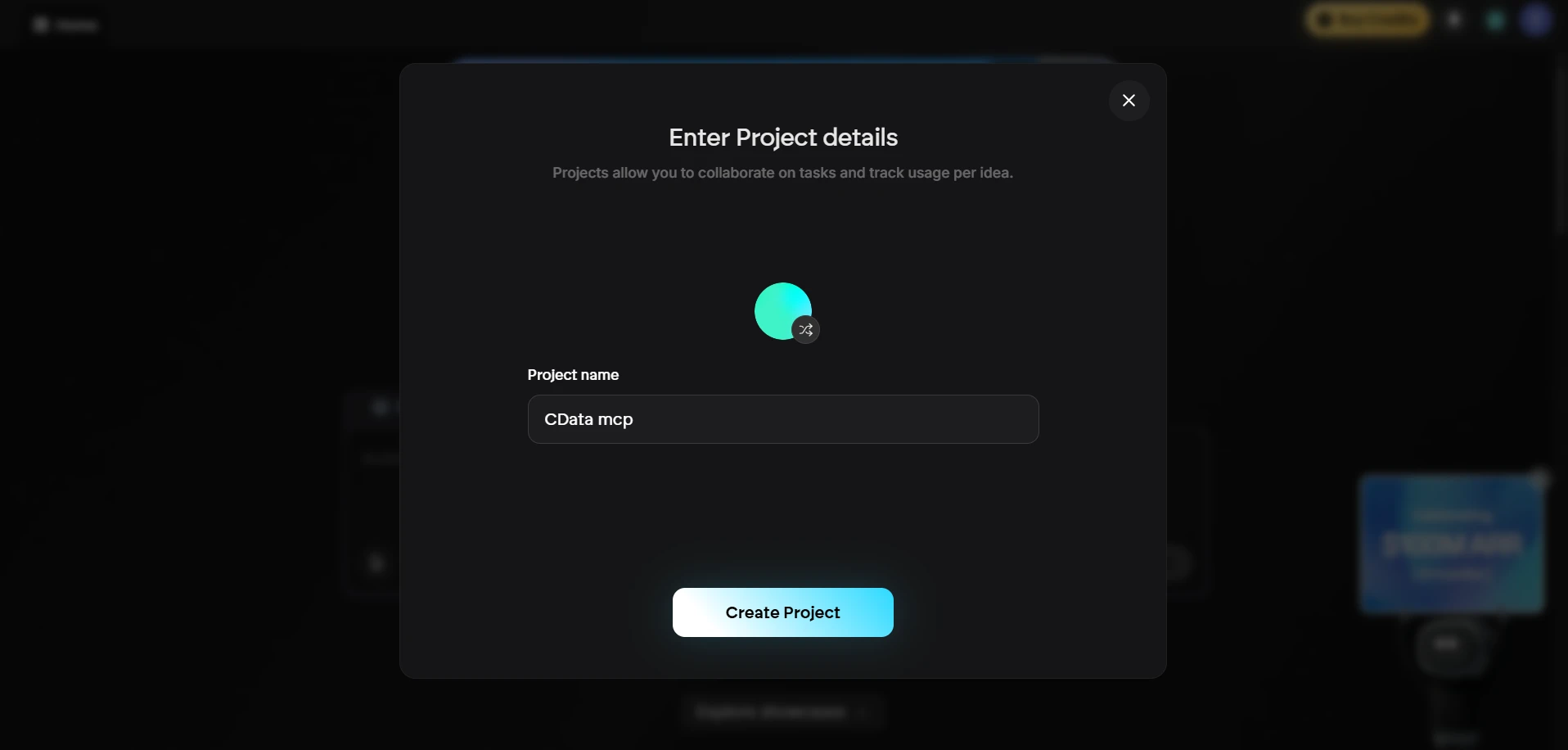
Click to start a new project. Enter a Project Name and click Create Project
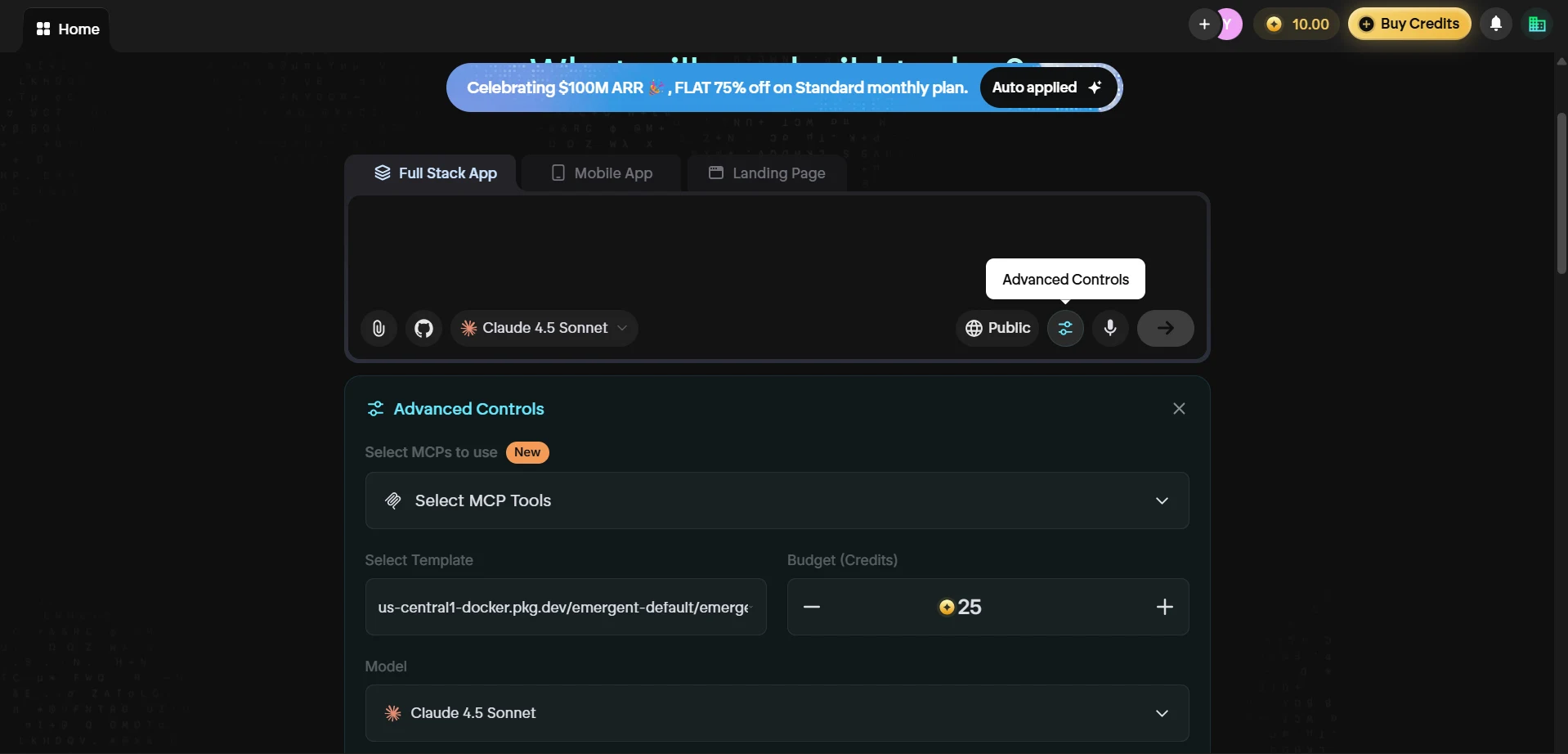
- In the project chat window, select your preferred model from the dropdown (e.g., Claude 4.5 Sonnet)
-
Click the Advanced Controls icon and then click Select MCP Tools to open the MCP configuration panel
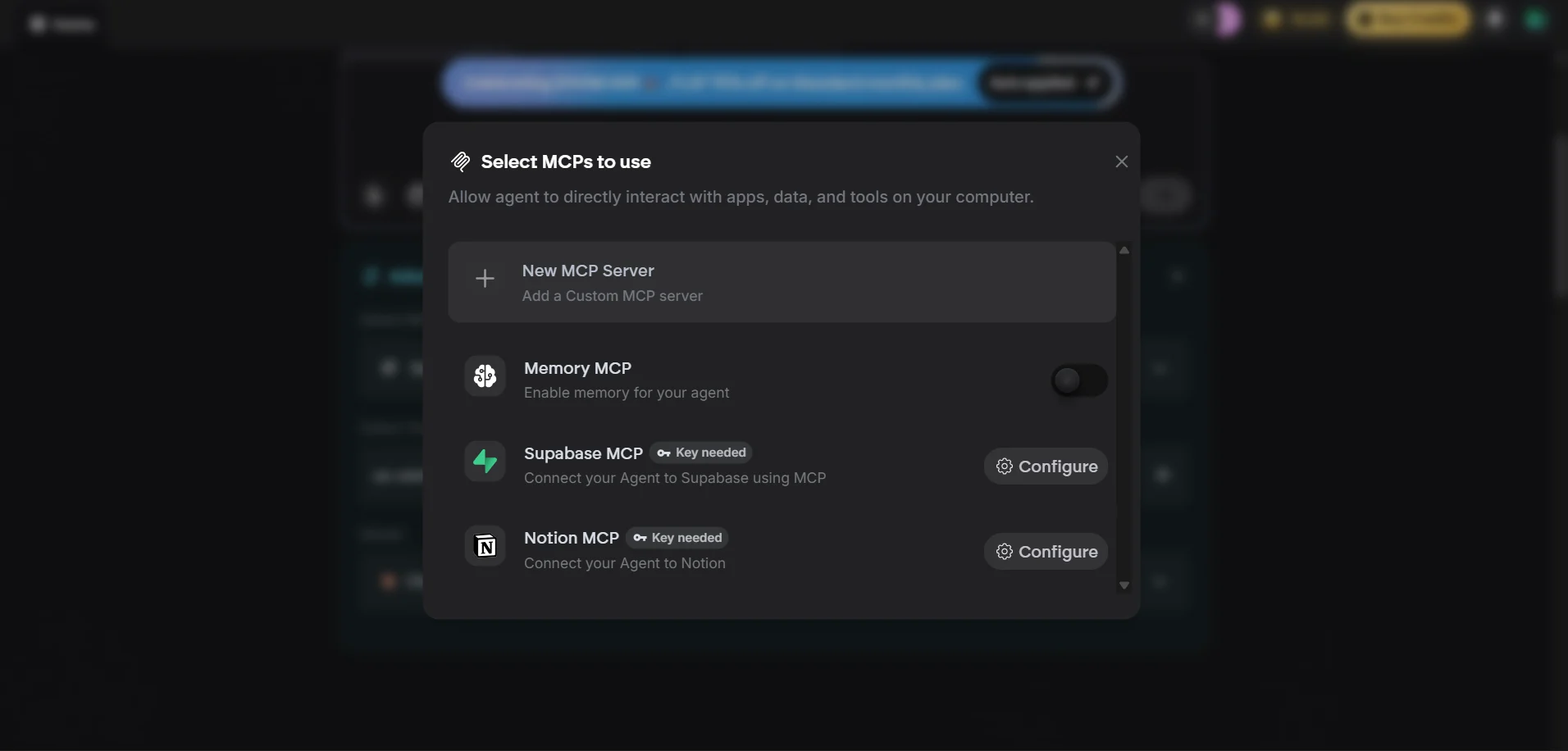
-
In the Select MCPs to use dialog, click + New MCP Server to add a custom MCP server
-
In the Configure New MCP dialog, fill in the following:
- MCP Name: cdata-mcp
- Description: (optional) A brief description of the server
- JSON Configuration: Paste the following, replacing base64-encode-email-pat with your Base64-encoded email:PAT string:
{
    "mcpServers": {
        "cdata-mcp": {
            "args": [
                "-y",
                "mcp-client",
                "connect",
                "https://mcp.cloud.cdata.com/mcp"
            ],
            "command": "npx",
            "env": {
                "MCP_HEADERS": "{\"Authorization\":\"Basic base64-encode-email-pat\"}"
            }
        }
    }
}
Note: Combine your Connect AI email and PAT in the format email:PAT, then Base64 encode the combined string. For example, given [email protected]:ABC123...XYZ, the value becomes something like: dXNlckBteWRvbWFpbjphSzkvbVB4Mi9Rcjd2TjQ...
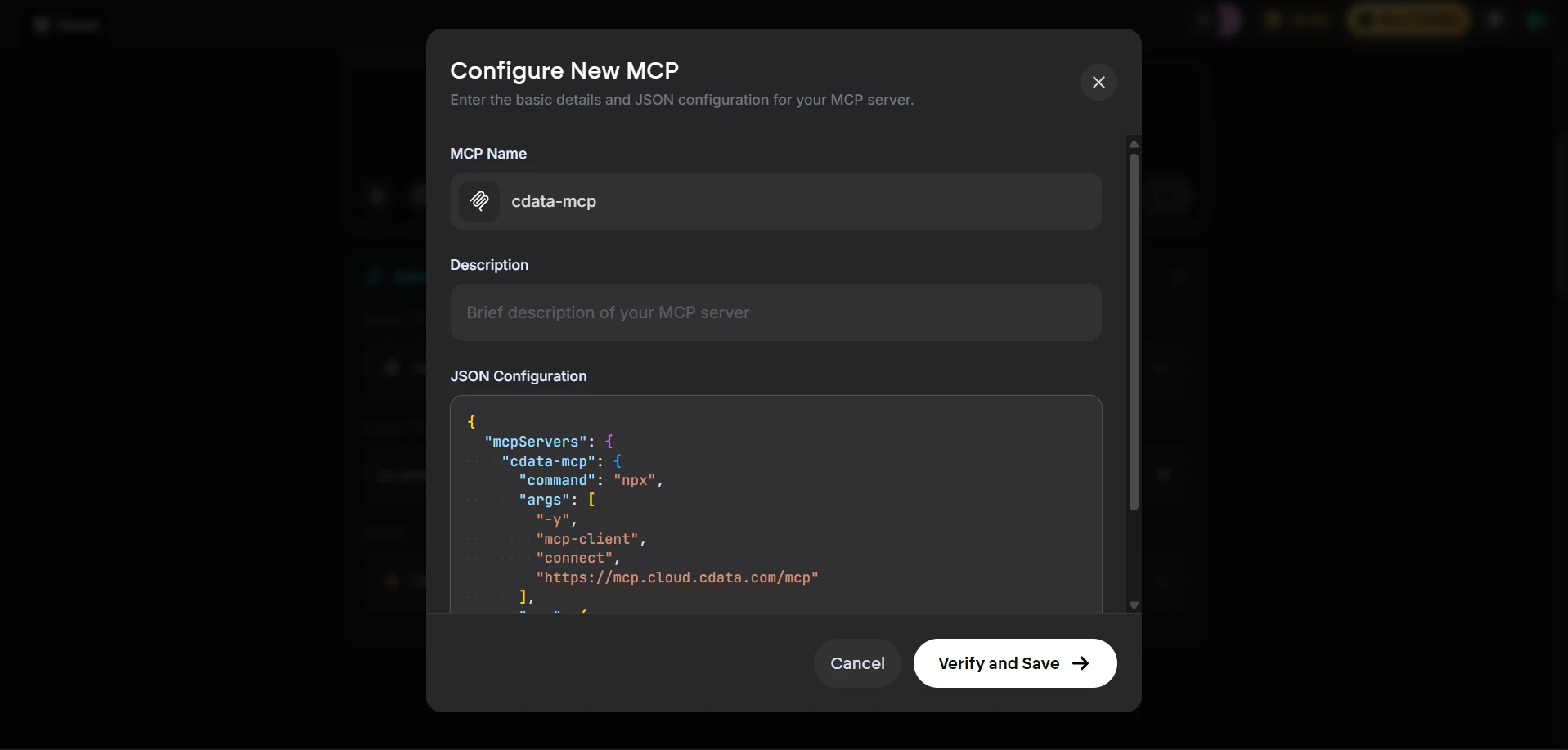
- Click Verify and Save to register the MCP server
- Return to Select MCP Tools and confirm that cdata-mcp is listed and its toggle is enabled. If it is not enabled, toggle it on
With the CData MCP Server registered and enabled, Emergent agents can now query and act on live SQL Analysis Services data through Connect AI in any project.
Query live SQL Analysis Services data from Emergent
With the MCP server configured, start a conversation in the Emergent agent panel to interact with live SQL Analysis Services data.
-
Return to the project chat and enter a prompt to explore your data, for example:
- List all available catalogs in my cdata-mcp connection.
- Show the schemas and tables available for SQL Analysis Services.
- Query the top 5 records from SQL Analysis Services data.
- The agent calls the CData Connect AI MCP Server and returns live results from SQL Analysis Services data
Method 2: Build an application with natural language (Free)
Free-tier users can direct Emergent to build a full-stack application that connects to the CData Connect AI MCP Server through a natural language prompt. The agent will gather the required endpoint and credentials interactively, then generate a working application wired to live SQL Analysis Services data.
- Sign in to Emergent and open the chat window
-
Enter a prompt that describes the application you want to build. For example:
I would like to build a small application that connects to a remote MCP HTTPS server. I already have the MCP endpoint URL and the required credentials. The application should: - Establish a connection to the remote MCP server - Authenticate using the provided credentials - Retrieve and list all available catalogs from the MCP Please make sure the credentials are stored securely in a .env file and not hardcoded in the application. -
Emergent will prompt you to provide the MCP endpoint URL and authentication credentials. Supply the following values:
- MCP Endpoint URL: https://mcp.cloud.cdata.com/mcp
- Authorization: Basic base64(email:PAT)
-
The Emergent agent generates a full-stack application that connects to SQL Analysis Services data through Connect AI and renders live results in the App Preview panel.
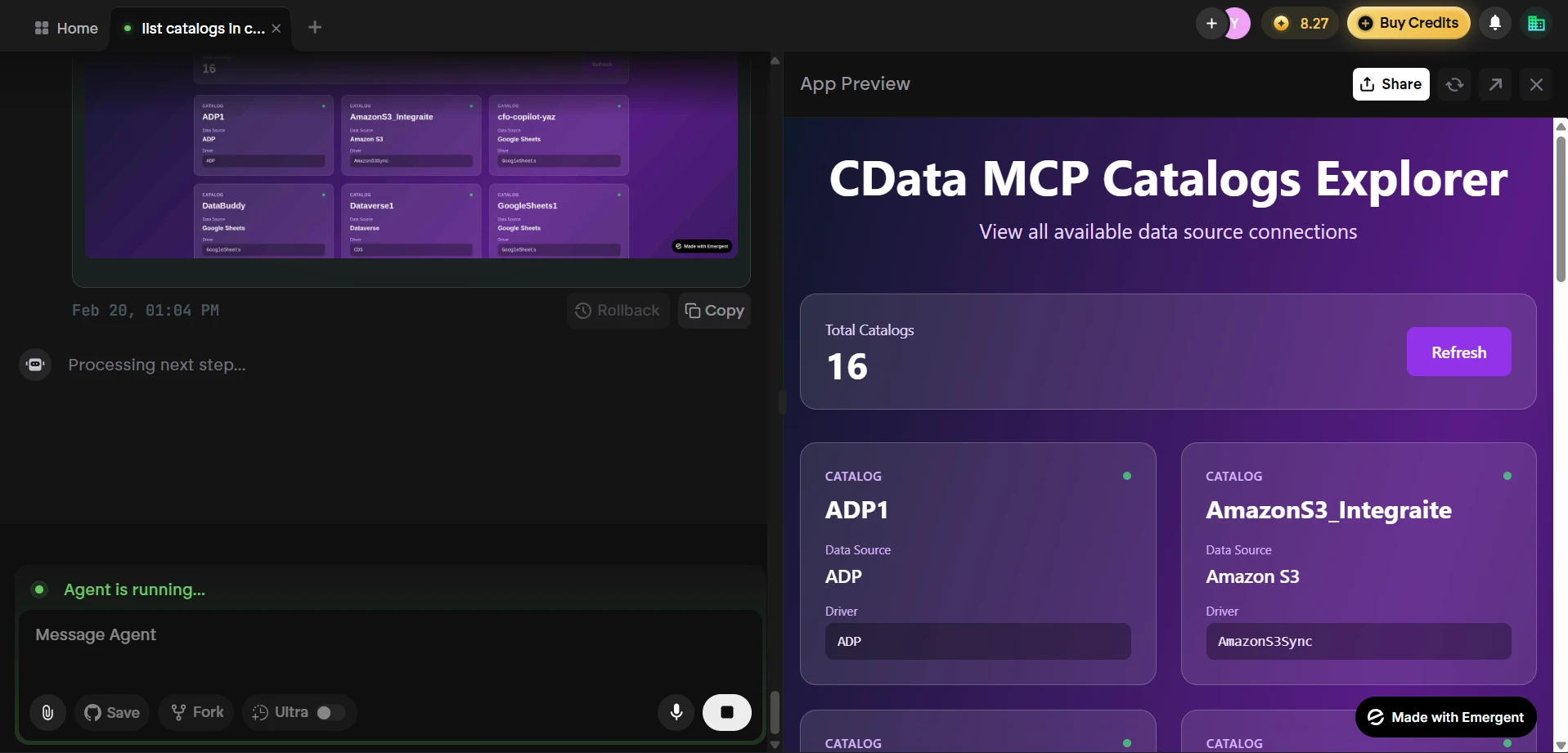
At this point, Emergent has built an application that communicates with the CData Connect AI MCP Server and retrieves live SQL Analysis Services data, all from a single natural language prompt.
Get CData Connect AI
To access hundreds of SaaS, Big Data, and NoSQL sources directly from your cloud applications, try CData Connect AI today! Sign up for a free 14-day trial of CData Connect AI, and as always, our world-class Support Team is available to assist you with any questions you may have.