







Create Sybase-Connected Business Apps in AppSheet

Google AppSheet is a no-code development platform for application software, enabling users to design mobile, tablet, and web applications. When combined with CData Connect AI, you gain immediate cloud-to-cloud access to Sybase data for business applications. This article outlines the process of connecting to Sybase using Connect AI and constructing a basic app from Sybase data within AppSheet.
CData Connect AI offers a dedicated cloud-to-cloud interface for Sybase, enabling the creation of reports directly from live Sybase data within AppSheet, all without the need for data replication to a native database. When you design applications that interact with data, AppSheet formulates SQL queries to retrieve the required information. With its inherent optimized data processing capabilities, CData Connect AI efficiently channels all supported SQL operations, including filters and JOINs, directly to Sybase. This leverages server-side processing to swiftly deliver the requested Sybase data.
Configure Sybase Connectivity for AppSheet
Connectivity to Sybase from AppSheet is made possible through CData Connect AI. To work with Sybase data from AppSheet, we start by creating and configuring a Sybase connection.
- Log into Connect AI, click Sources, and then click Add Connection
- Select "Sybase" from the Add Connection panel
-
Enter the necessary authentication properties to connect to Sybase.
To connect to Sybase, specify the following connection properties:
- Server: Set this to the name or network address of the Sybase database instance.
- Database: Set this to the name of the Sybase database running on the specified Server.
Optionally, you can also secure your connections with TLS/SSL by setting UseSSL to true.
Sybase supports several methods for authentication including Password and Kerberos.
Connect Using Password Authentication
Set the AuthScheme to Password and set the following connection properties to use Sybase authentication.
- User: Set this to the username of the authenticating Sybase user.
- Password: Set this to the username of the authenticating Sybase user.
Connect using LDAP Authentication
To connect with LDAP authentication, configure Sybase server-side to use the LDAP authentication mechanism.
After configuring Sybase for LDAP, you can connect using the same credentials as Password authentication.
Connect Using Kerberos Authentication
To leverage Kerberos authentication, begin by enabling it setting AuthScheme to Kerberos. See the Using Kerberos section in the Help documentation for more information on using Kerberos authentication.
You can find an example connection string below:
Server=MyServer;Port=MyPort;User=SampleUser;Password=SamplePassword;Database=MyDB;Kerberos=true;KerberosKDC=MyKDC;KerberosRealm=MYREALM.COM;KerberosSPN=server-name

- Click Save & Test
-
Navigate to the Permissions tab in the Add Sybase Connection page and update the User-based permissions.



Add a Personal Access Token
When connecting to Connect AI through the REST API, the OData API, or the Virtual SQL Server, a Personal Access Token (PAT) is used to authenticate the connection to Connect AI. It is best practice to create a separate PAT for each service to maintain granularity of access.
- Click on the Gear icon () at the top right of the Connect AI app to open the settings page.
- On the Settings page, go to the Access Tokens section and click Create PAT.
-
Give the PAT a name and click Create.

- The personal access token is only visible at creation, so be sure to copy it and store it securely for future use.
With the connection configured and a PAT generated, you are ready to connect to Sybase data from AppSheet.
Connect to Sybase from AppSheet
The steps below outline connecting to CData Connect AI from AppSheet to create a new Sybase data source.
- Log into AppSheet
- Click "My account" in the menu
- Click the Sources tab and add a new data source
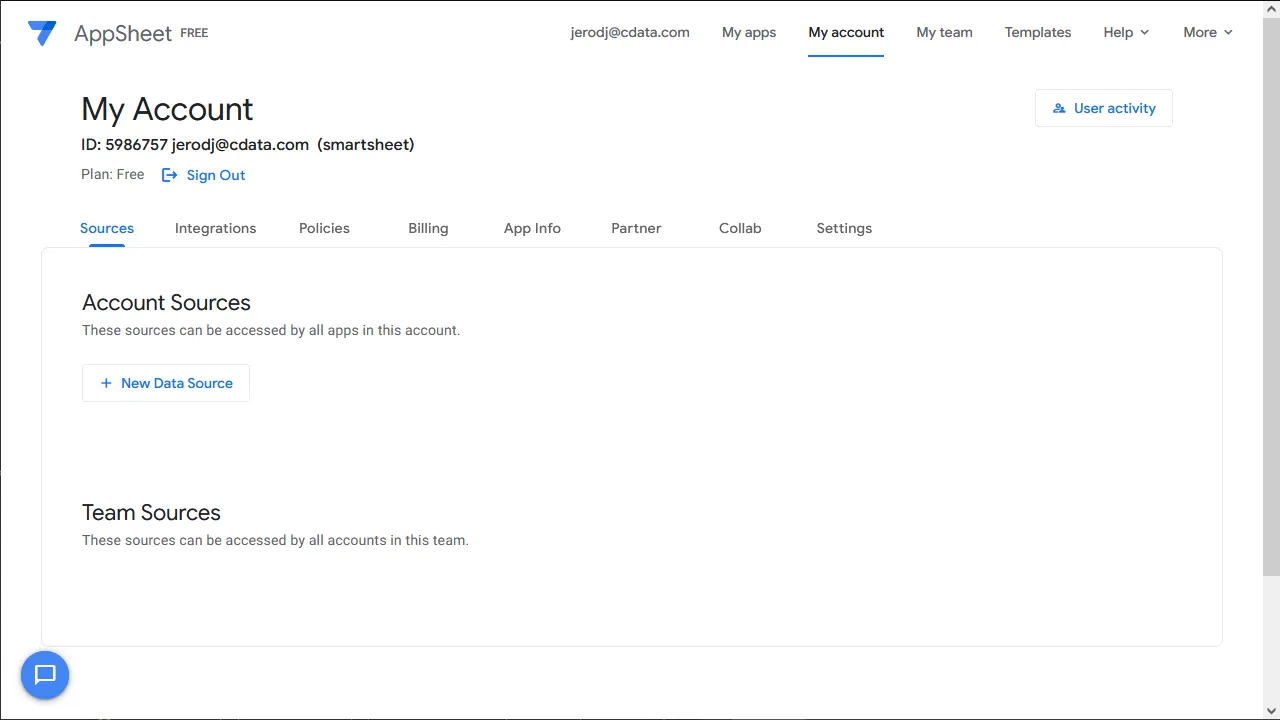
- Select Cloud Database and set the connection information
- Type: Sql Server
- Server: tds.cdata.com,14333
- Database: the Sybase connection, for example, Sybase1
- Username: a Connect AI user, for example, [email protected]
- Password: the PAT for the above Connect AI user
- SSL: Require SSL
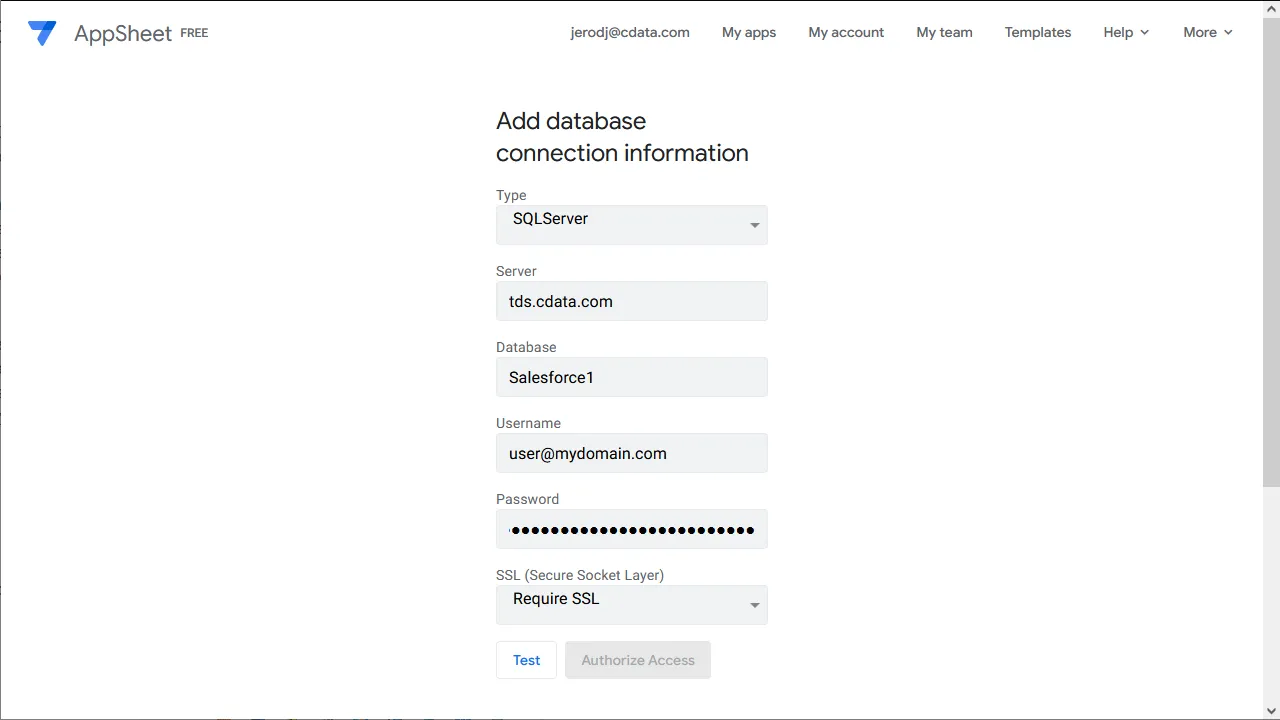
- Click "Test Connection"
- Click "Authorize Access"
Create an App
Once you create the data source for Sybase, you can start building apps on Sybase data. Start by clicking "My apps" in the menu.
- Click to create a new app and select "Start with your own data"
- Name the app and select an appropriate category, based on your data
- Select the newly created data source
- Select the table or view with the data you want
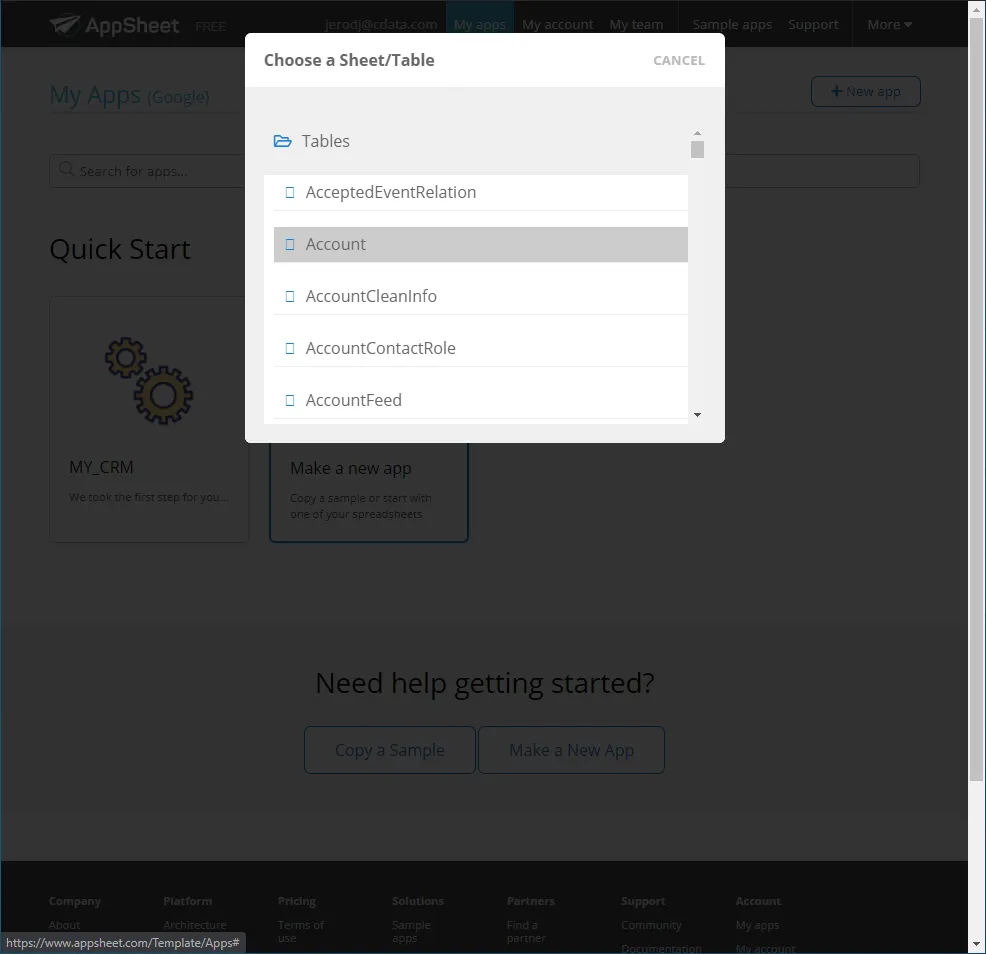
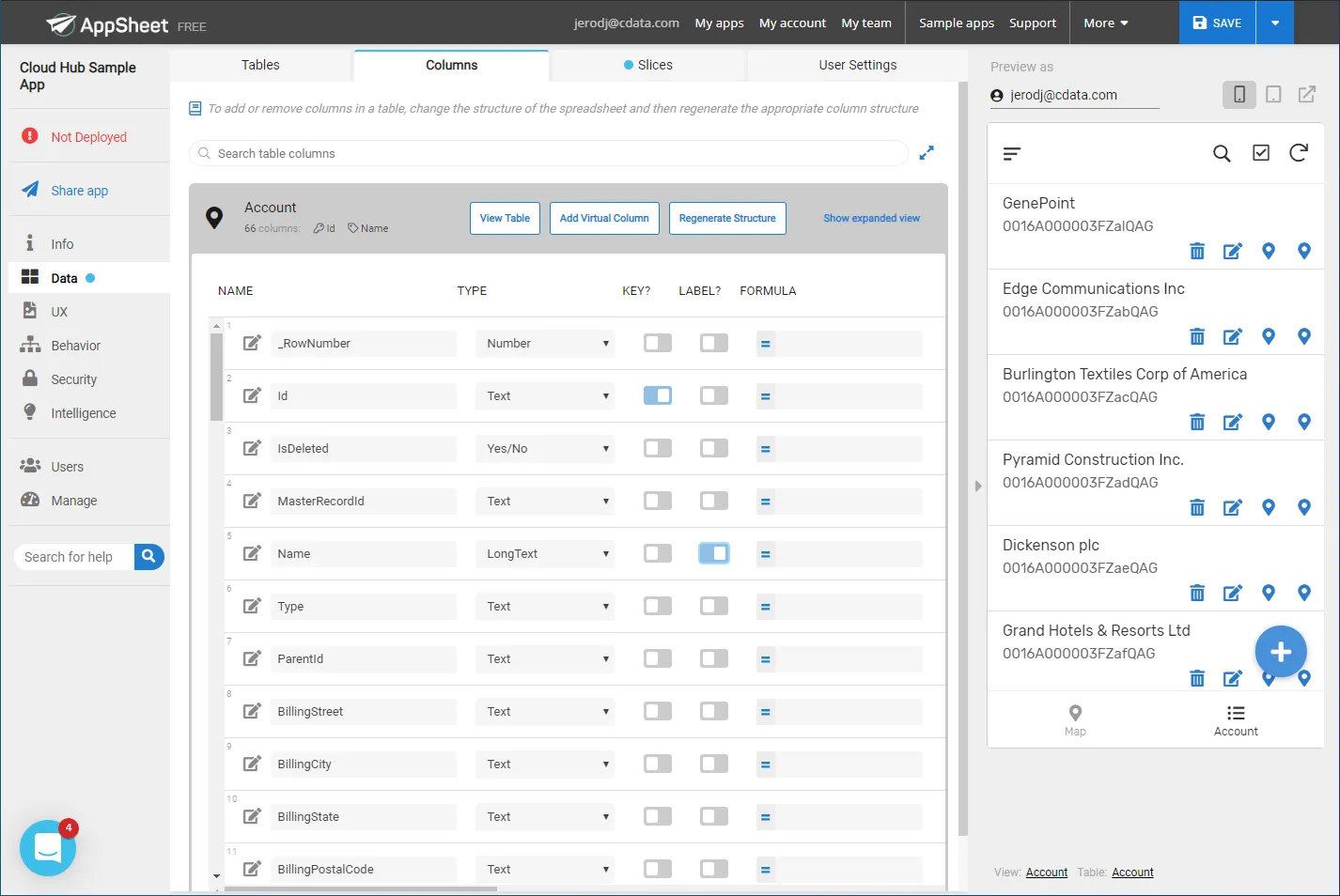
At this point, you can configure the design of your app, selecting which columns from the selected table to display, use as labels, and more. Preview the app in the preview panel and then publish or share it when ready.
To get live data access to hundreds of SaaS, Big Data, and NoSQL sources directly from your cloud applications, try CData Connect AI today!