







Use Dash to Build Web Apps on Trello Data via CData Connect AI

The rich ecosystem of Python modules lets you get to work quickly and integrate your systems more effectively. With the CData Connect AI Python SDK, the pandas module, and the Dash framework, you can build Trello-connected web applications for Trello data. This article shows how to connect to Connect AI and use pandas and Dash to build a simple web app for visualizing Trello data.
The Connect AI Python SDK (cdata-connect-ai) is a DB-API 2.0 (PEP 249) compliant client, so pandas can read query results directly from the SDK connection object. There is no driver to install per source: connect with a Personal Access Token and build your app.
Connect to Trello in Connect AI
CData Connect AI uses a straightforward, point-and-click interface to connect to data sources.
- Log into Connect AI, click Sources, and then click Add Connection
- Select "Trello" from the Add Connection panel
-
Enter the necessary authentication properties to connect to Trello.
Trello uses token-based authentication to grant third-party applications access to their API. When a user has granted an application access to their data, the application is given a token that can be used to make requests to Trello's API.
Trello's API can be accessed in 2 different ways. The first is using Trello's own Authorization Route, and the second is using OAuth1.0.
- Authorization Route: At the moment of registration, Trello assigns an API key and Token to the account. See the Help documentation for information on how to connect via the Authorization route.
- OAuth Route: Similar to using Authorization, OAuth creates an Application Id and Secret when you create your account. See the Help documentation for information on how to to connect.

- Click Save & Test
- Navigate to the Permissions tab and update the user-based permissions.



Generate a Personal Access Token (PAT)
The Python SDK authenticates to Connect AI with your account email and a Personal Access Token (PAT). It is best practice to create a separate PAT for each application to maintain granularity of access.
- Click the Gear icon () at the top right of the Connect AI app to open the Settings page.
- On the Settings page, go to the Access Tokens section and click Create PAT.
- Give the PAT a name and click Create.

- The PAT is only visible at creation, so copy it and store it securely.
Install Required Modules
Install the SDK (with the pandas extra), Dash, and Plotly using the pip utility:
pip install "cdata-connect-ai[full]"
pip install dash
pip install plotly
Build a Web App on Trello Data in Python
Once the required modules are installed, you are ready to build the web app. Code snippets follow, but the full source code is available at the end of the article.
First, import the modules, then connect to Connect AI with your account email and PAT and read Trello data into a DataFrame. Identifiers are three-part: <Connection>.<Schema>.<Table>, where the connection name defaults to the source name (for example, Trello1).
import dash
from dash import dcc, html
import pandas as pd
import plotly.graph_objs as go
import cdata_connect_ai

conn = cdata_connect_ai.connect(
    username="[email protected]",
    password="<your_pat>",
)

df = pd.read_sql(
    "SELECT BoardId, Name "
    "FROM [Trello1].[Trello].[Boards] "
    "WHERE Name = 'Public Board'",
    conn,
)

conn.close()
Configure the App and Layout
With the query results stored in a DataFrame, build a bar graph from the Trello data and configure the app layout.
app = dash.Dash(__name__)
app.title = 'CData Connect AI + Dash'

trace = go.Bar(x=df['BoardId'], y=df['Name'], name='BoardId')

app.layout = html.Div(
    children=[
        html.H1("CData Connect AI + Dash", style={'textAlign': 'center'}),
        dcc.Graph(
            id='example-graph',
            figure={
                'data': [trace],
                'layout': go.Layout(title='Trello Boards Data', barmode='stack'),
            },
        ),
    ],
    className="container",
)
Set the App to Run
With the connection, app, and layout configured, you are ready to run the app.
if __name__ == '__main__':
    app.run(debug=True)
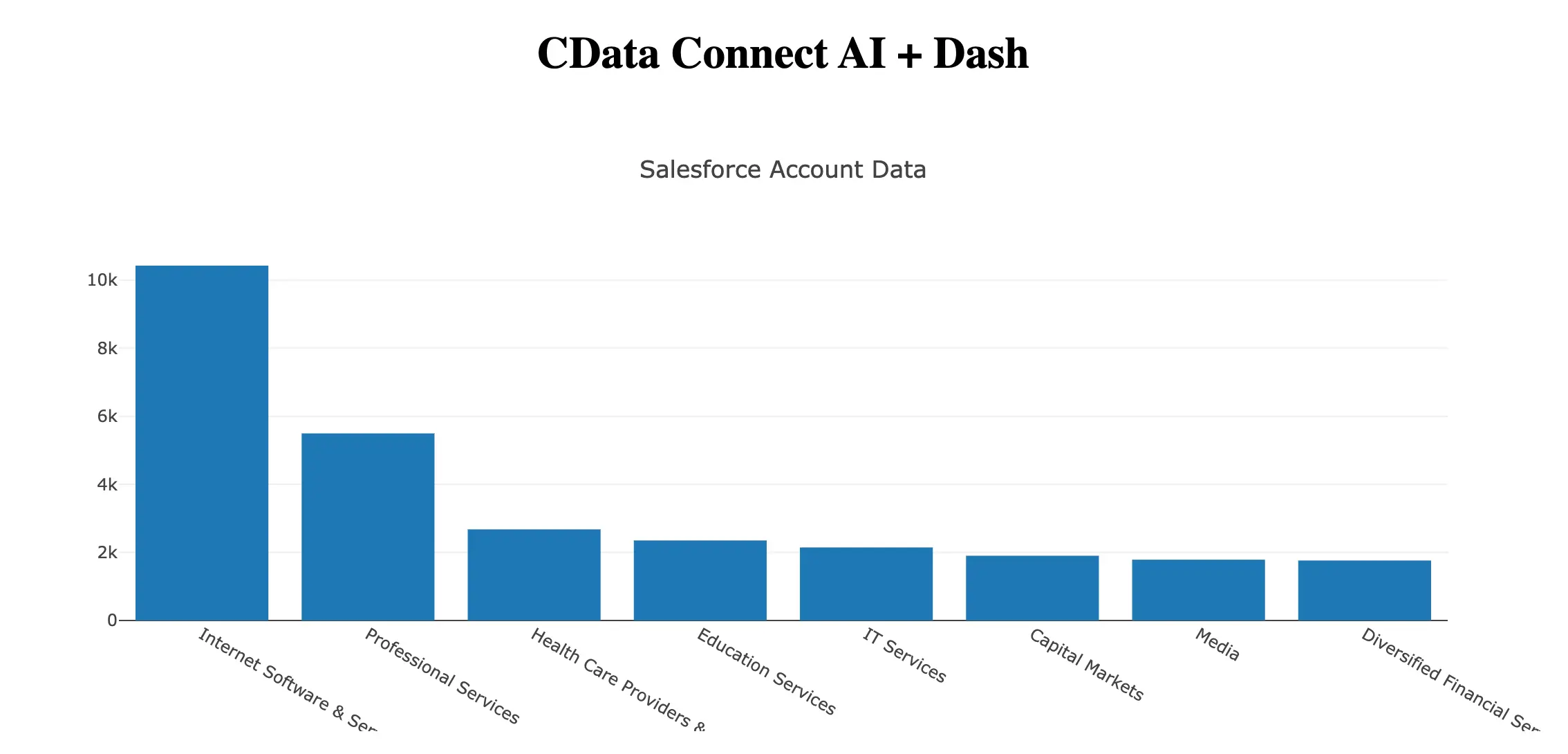
Now, use Python to run the web app and a browser to view the Trello data.
python trello-dash.py
More Information and Free Trial
Now you can build interactive Dash web apps on live Trello data using the CData Connect AI Python SDK. For more information on connecting to Trello (and hundreds of other data sources), visit the Connect AI page. Sign up for a free trial and start building web apps on live Trello data in Python.
Full Source Code
import dash
from dash import dcc, html
import pandas as pd
import plotly.graph_objs as go
import cdata_connect_ai

conn = cdata_connect_ai.connect(
    username="[email protected]",
    password="<your_pat>",
)

df = pd.read_sql(
    "SELECT BoardId, Name "
    "FROM [Trello1].[Trello].[Boards] "
    "WHERE Name = 'Public Board'",
    conn,
)

conn.close()

app = dash.Dash(__name__)
app.title = 'CData Connect AI + Dash'

trace = go.Bar(x=df['BoardId'], y=df['Name'], name='BoardId')

app.layout = html.Div(
    children=[
        html.H1("CData Connect AI + Dash", style={'textAlign': 'center'}),
        dcc.Graph(
            id='example-graph',
            figure={
                'data': [trace],
                'layout': go.Layout(title='Trello Boards Data', barmode='stack'),
            },
        ),
    ],
    className="container",
)

if __name__ == '__main__':
    app.run(debug=True)