




Fetch Multiple Related Tables in One API Call Using OData $expand in CData API Server
Fetching related data across multiple tables typically costs three or four API calls per screen: one for the customer, one for their orders, one for the products in each order. The screen loads slowly, and the client-side code that stitches the results together is hard to maintain.
CData API Server exposes data using OData, which includes a keyword called $expand that returns a parent row and all its related child rows in a single request. Define the relationship once in API Server, and every OData-aware client can use it immediately.
This article covers two approaches to retrieving related tables together and explains when each one fits best:
- Approach A: OData $expand with relationships defined in API Server (the OData-native approach)
- Approach B: Pre-joined SQL views on the data source side (the fallback for deeper hierarchies)
Prerequisites
Before you begin, make sure you have the following:
- CData API Server installed and running (if you haven't set one up yet, see the install and Postman walkthrough first; it takes about 15 minutes)
- A SQL Server database where you can create related tables (Azure SQL, on-premises SQL Server, or LocalDB)
- Postman or any REST client
- An API Server user with an auth token (sent in the x-cdata-authtoken header on every request)
Step 1: Set up the sample data
The steps below create a four-table data model with sample rows. If you already have related tables, skip to Step 2 and substitute your own table and column names throughout.
The schema
The sample schema uses a classic e-commerce shape:
- Customers has many Orders (one customer, many orders)
- Orders has many OrderDetails (one order, many line items)
- OrderDetails links to Products (many line items, one product each)
Create the tables
Run the following SQL to create all four tables. The script uses USE mydb; replace mydb with your database name if different.
USE mydb;
GO

CREATE TABLE Customers (
    CustomerID    INT PRIMARY KEY IDENTITY(1,1),
    CustomerName  NVARCHAR(100) NOT NULL,
    Email         NVARCHAR(150),
    Country       NVARCHAR(50),
    CreatedDate   DATETIME DEFAULT GETDATE()
);

CREATE TABLE Products (
    ProductID     INT PRIMARY KEY IDENTITY(1,1),
    ProductName   NVARCHAR(100) NOT NULL,
    Category      NVARCHAR(50),
    UnitPrice     DECIMAL(10,2),
    StockQuantity INT,
    CreatedDate   DATETIME DEFAULT GETDATE()
);

CREATE TABLE Orders (
    OrderID          INT PRIMARY KEY IDENTITY(1,1),
    CustomerID       INT FOREIGN KEY REFERENCES Customers(CustomerID),
    OrderDate        DATETIME DEFAULT GETDATE(),
    TotalAmount      DECIMAL(10,2),
    Status           NVARCHAR(20),
    ShippingAddress  NVARCHAR(200)
);

CREATE TABLE OrderDetails (
    OrderDetailID  INT PRIMARY KEY IDENTITY(1,1),
    OrderID        INT FOREIGN KEY REFERENCES Orders(OrderID),
    ProductID      INT FOREIGN KEY REFERENCES Products(ProductID),
    Quantity       INT,
    UnitPrice      DECIMAL(10,2),
    Subtotal       AS (Quantity * UnitPrice) PERSISTED
);
Once the tables exist, insert a few rows into each so you have data to query. A handful of customers, products, and orders is enough. To skip manual data entry, use the sample script (APIServerTest_sample_schema.sql) attached with this article, which creates all four tables and inserts realistic rows in a single run.
Publish all four tables in API Server
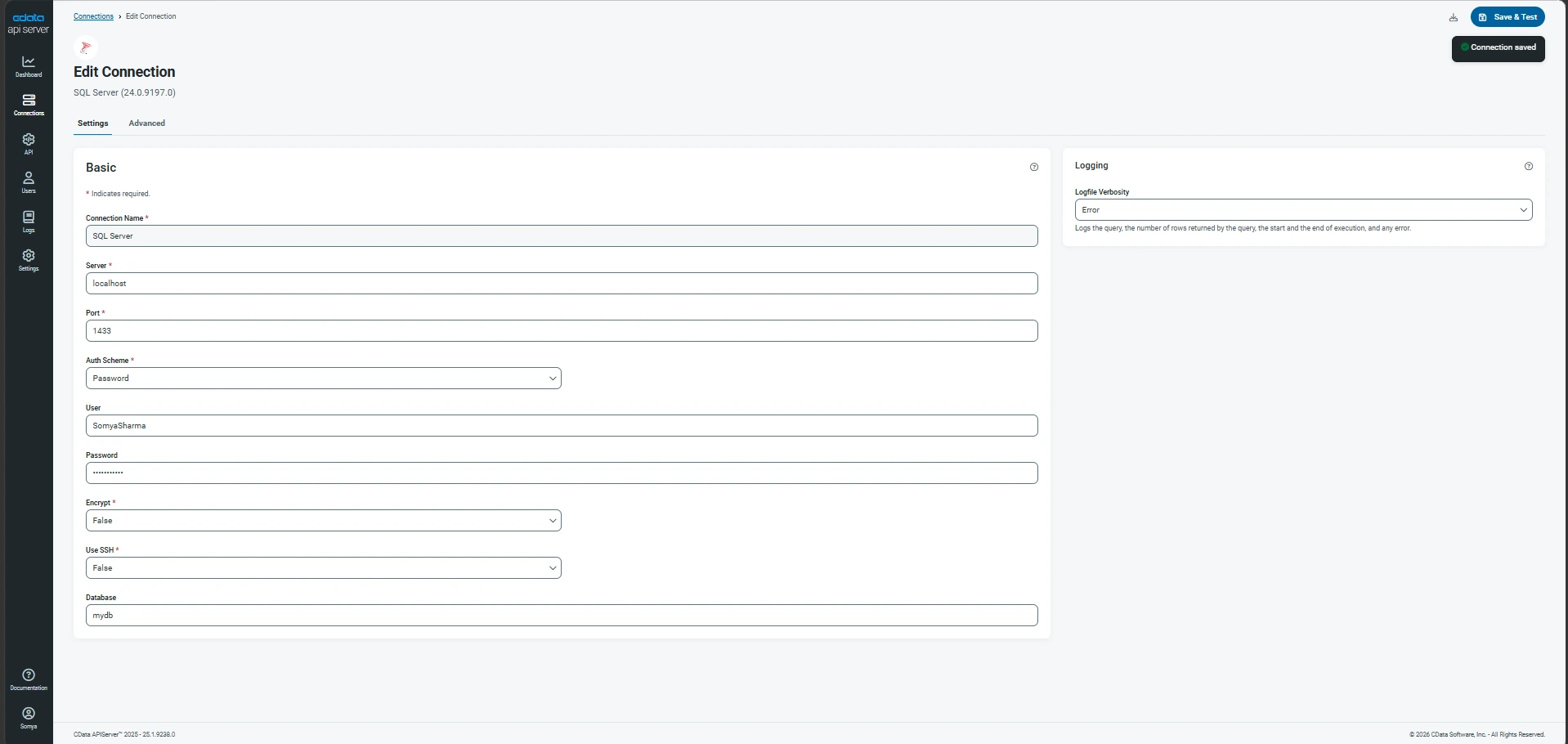
In the API Server admin UI, open the Connections tab and confirm your SQL Server connection is configured.
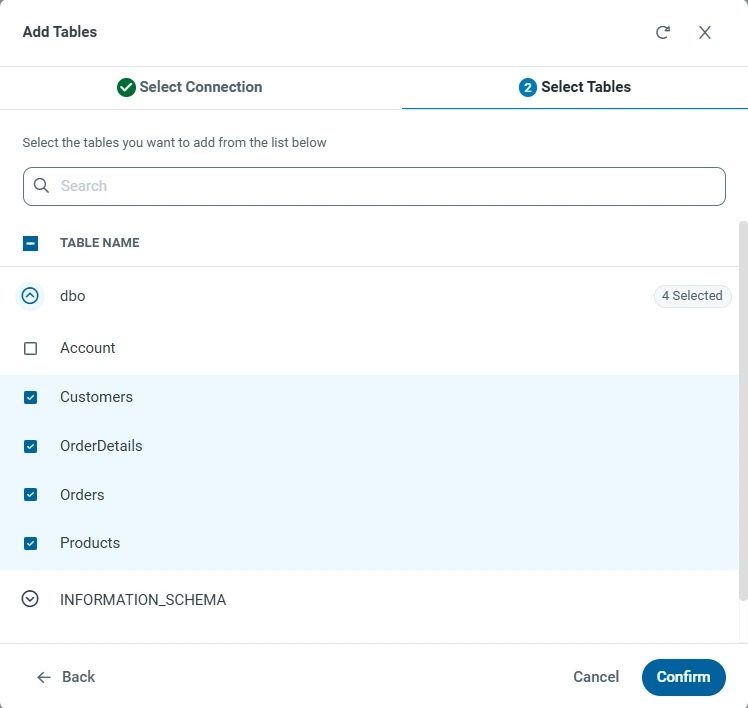
Go to the API tab, click Add Table, select Customers, Products, Orders, and OrderDetails, then click Confirm.
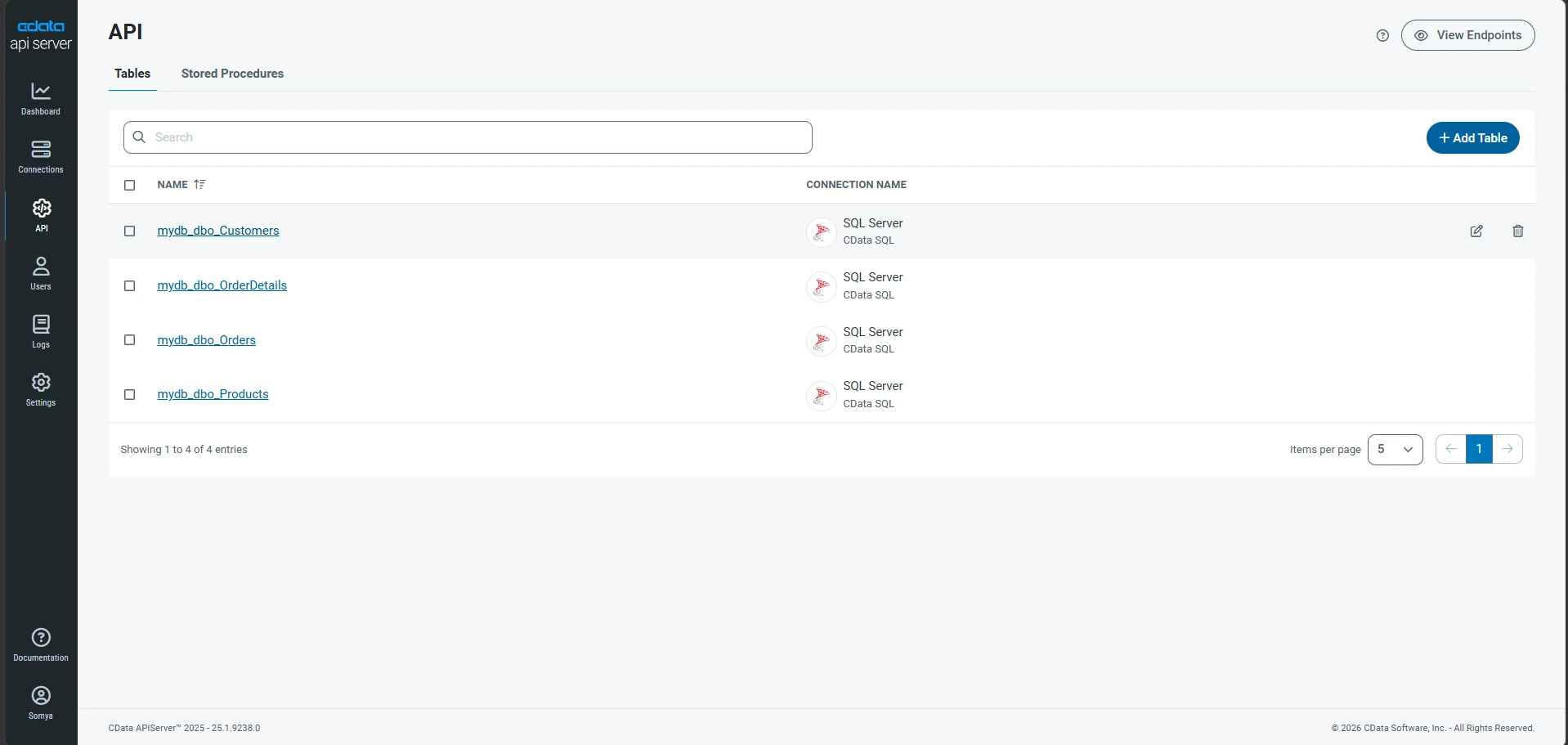
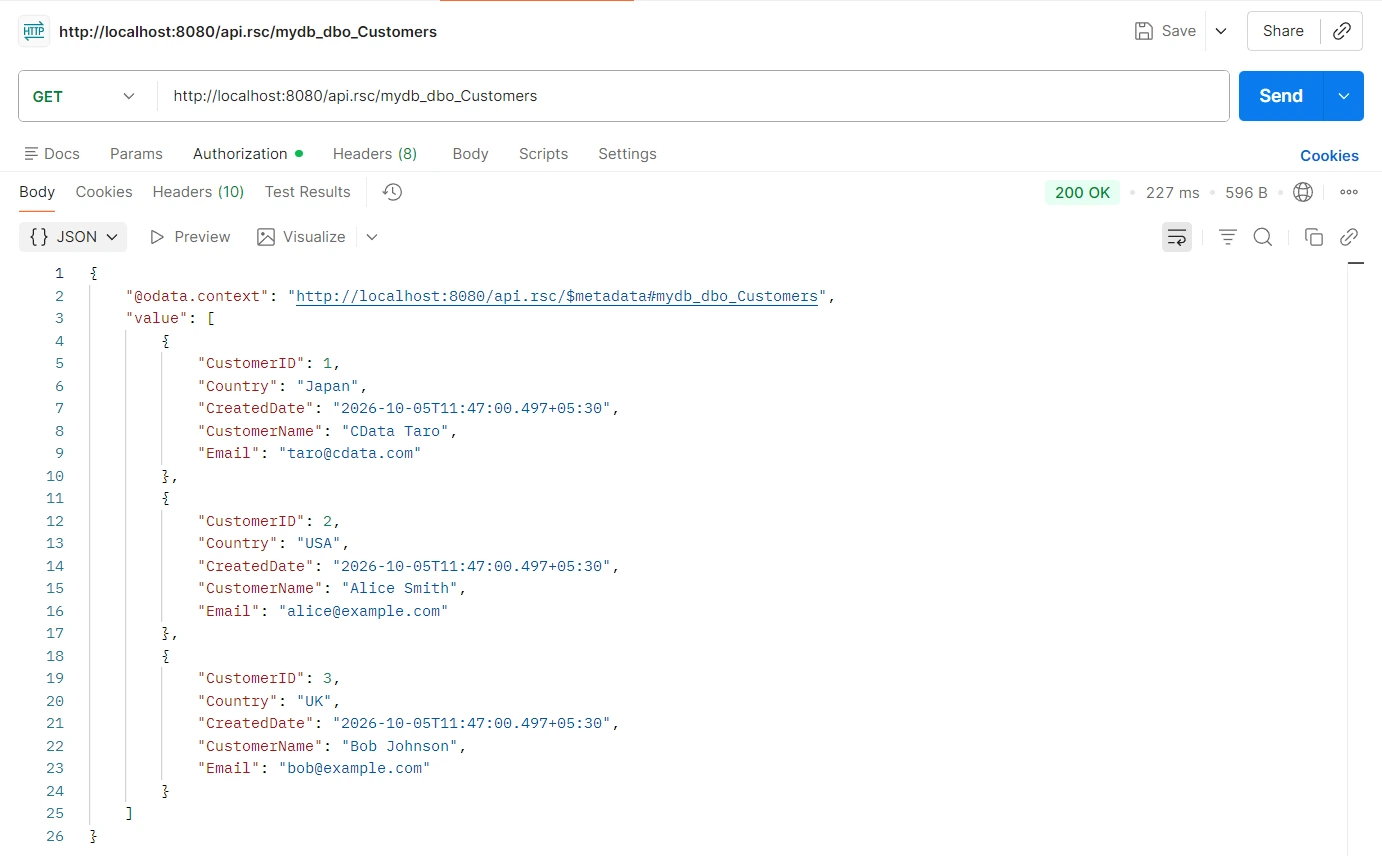
At this point, each table returns a flat list with no related data attached. Test all four endpoints in Postman to confirm data is returning correctly:
GET http://localhost:8080/api.rsc/mydb_dbo_Customers
GET http://localhost:8080/api.rsc/mydb_dbo_Orders
GET http://localhost:8080/api.rsc/mydb_dbo_Products
GET http://localhost:8080/api.rsc/mydb_dbo_OrderDetails
Step 2: Approach A: OData $expand with relationships
How relationships work in API Server
API Server treats every published table as independent by default. Even if the database has a foreign key linking Customers.CustomerID to Orders.CustomerID, API Server does not detect it automatically. You define the relationship explicitly on the column.
A relationship is a small configuration on a column that tells API Server which table and column it links to. Once defined, the OData $expand keyword follows the relationship and returns the related data in the same response.
Set up a one-to-many relationship: Customers to Orders
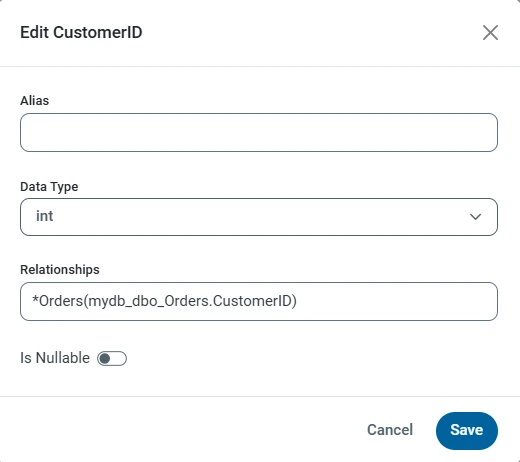
In the API Server admin UI, go to the API tab, find the Customers table row, and click Edit (the pencil icon). In the column list, click CustomerID to open its properties. In the Relationship field, enter the following string exactly:
*Orders(mydb_dbo_Orders.CustomerID)
Two details matter:
- The asterisk (*) at the start marks this as one-to-many. Without it, API Server returns only one child row per parent, which is almost never the intended result.
- The table name in parentheses uses the full resource name (mydb_dbo_Orders), not just Orders. This is the OData resource name API Server publishes, so the full form is required.
Run a basic $expand query
Open Postman and run the following request. Basic Auth credentials are required; API Server rejects requests without authentication.
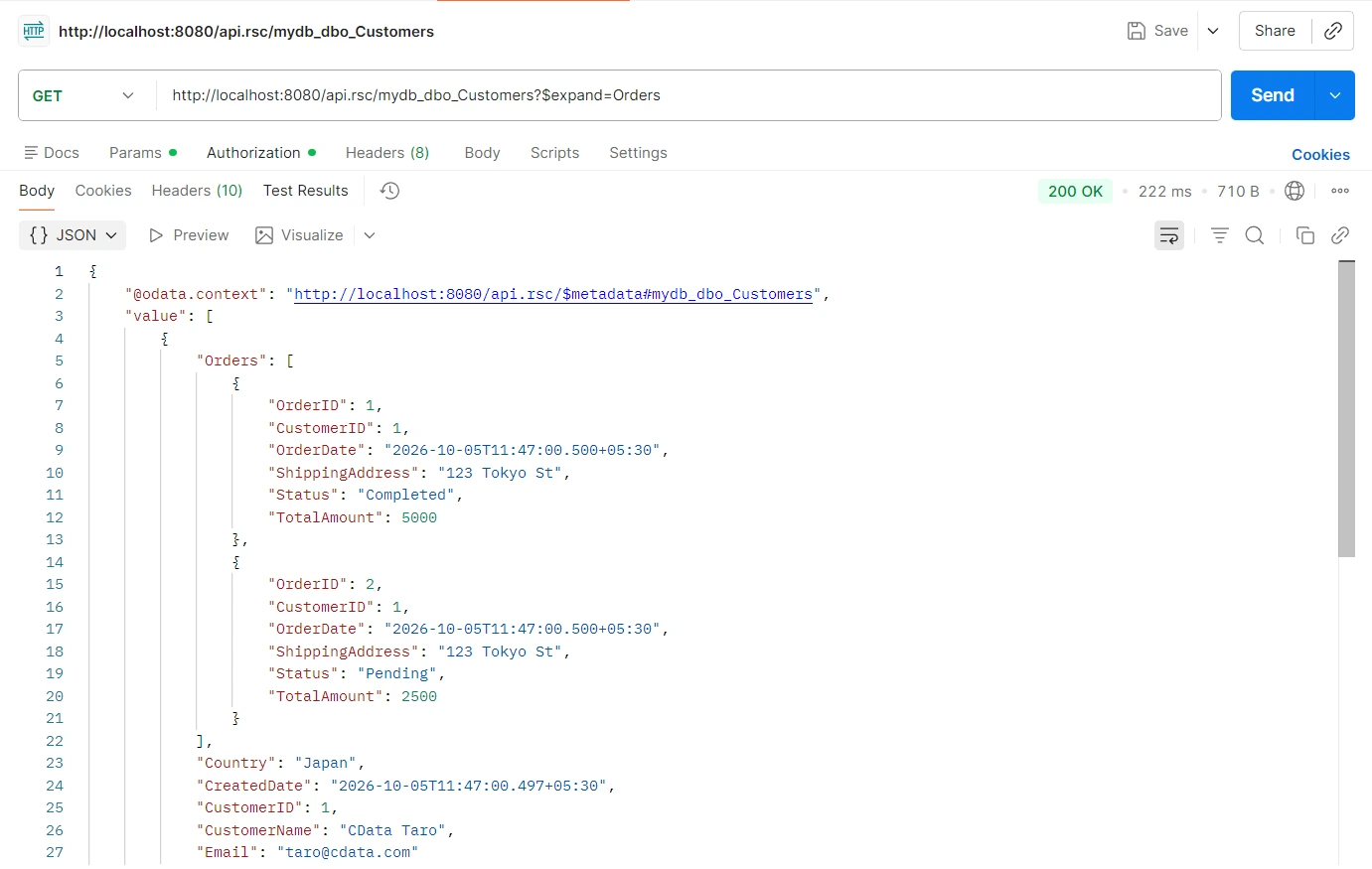
GET http://localhost:8080/api.rsc/mydb_dbo_Customers?$expand=Orders
Each customer now includes a nested Orders array. The joined data returns in one request, with no client-side stitching required.
Set up a many-to-one relationship: Orders to Customers
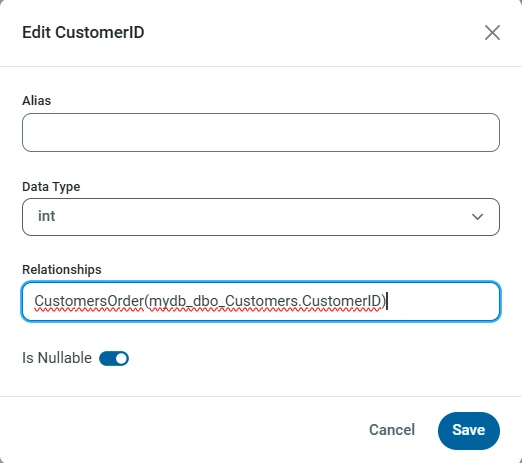
The next relationship returns the owning Customer for a given Order in the same call. On the API tab, click Edit on the Orders table, click the CustomerID column, and enter the following in the Relationship field:
CustomersOrder(mydb_dbo_Customers.CustomerID)
Two differences from the previous step:
- No asterisk: this is many-to-one, so each Order maps to exactly one Customer.
- CustomersOrder is the relationship name used in $expand=. Choose a descriptive name that makes the direction clear.
Run the following request:
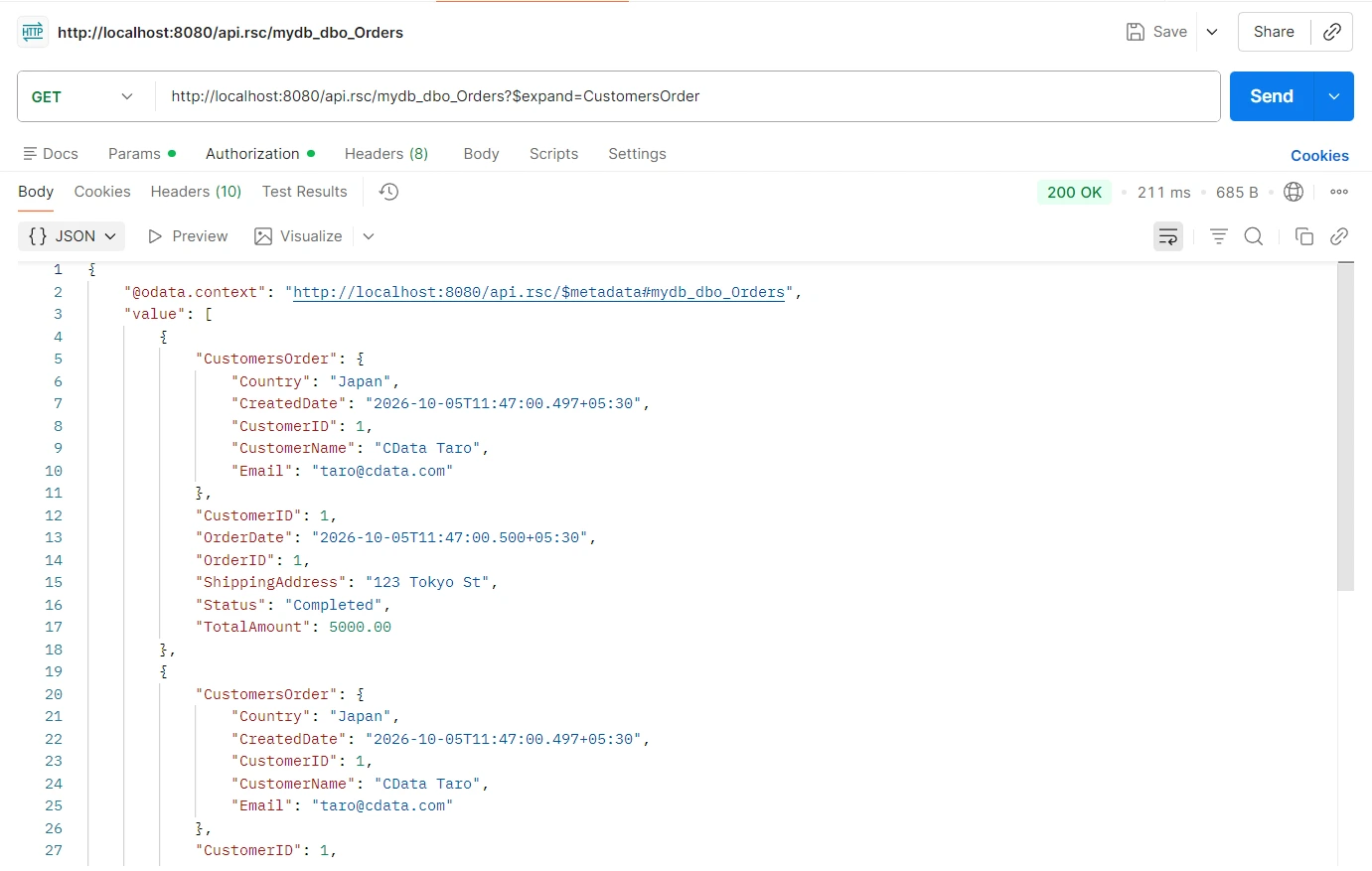
GET http://localhost:8080/api.rsc/mydb_dbo_Orders?$expand=CustomersOrder
Each order now includes its parent Customer in a nested CustomersOrder object.
Set up one more relationship: Orders to OrderDetails
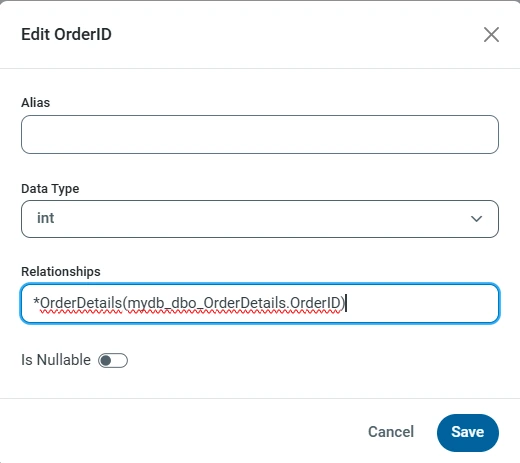
On the API tab, click Edit on the Orders table, click the OrderID column, and enter:
*OrderDetails(mydb_dbo_OrderDetails.OrderID)
The asterisk marks this as one-to-many, since each Order has many OrderDetails line items. Without it, only one line item returns per order.
Combine $expand with other OData query options
$expand combines with other OData query options. The three patterns below cover most use cases.
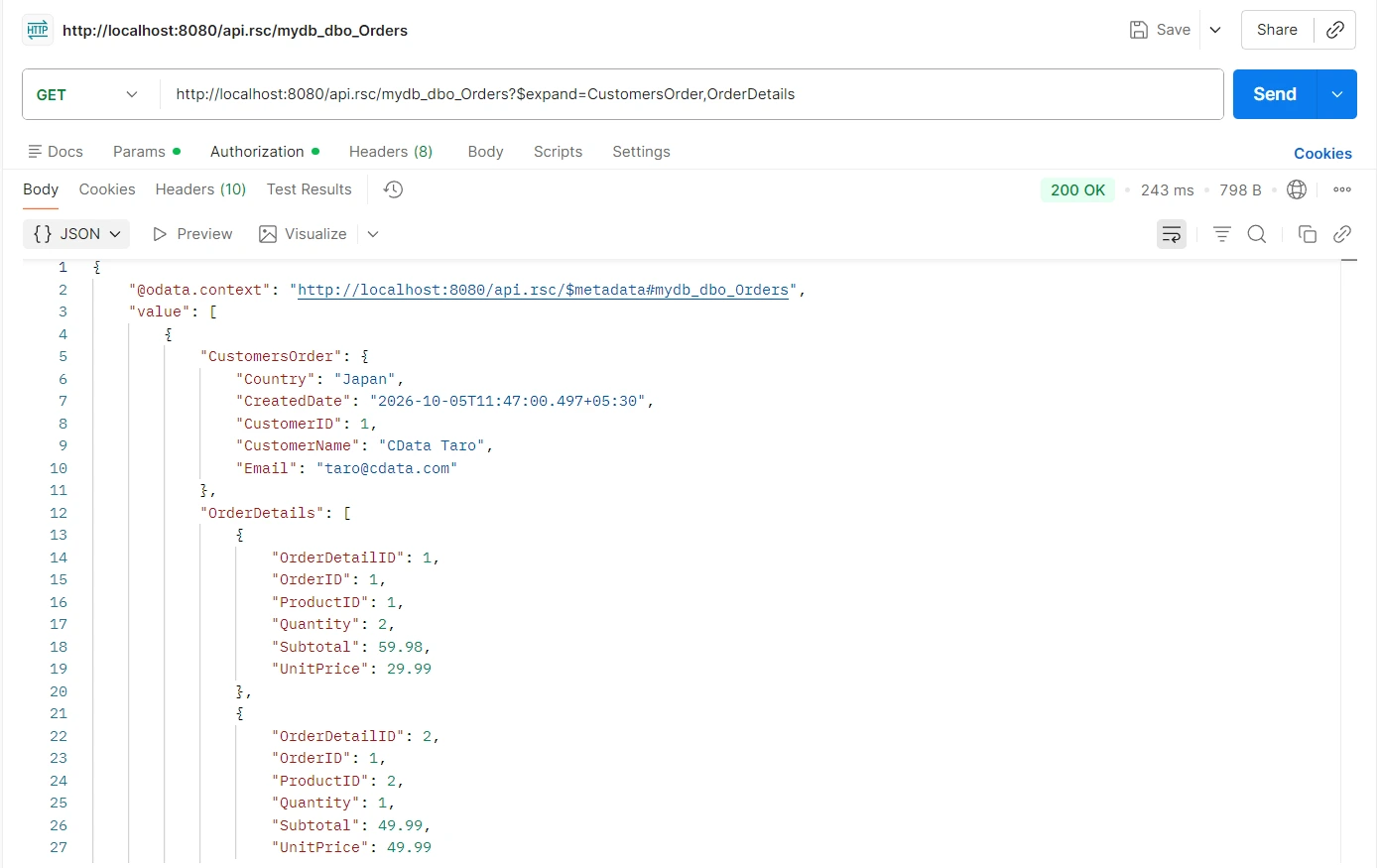
Expand multiple relationships in one call:
GET http://localhost:8080/api.rsc/mydb_dbo_Orders?$expand=CustomersOrder,OrderDetails
Every order returns with both its Customer and its OrderDetails in the same response.
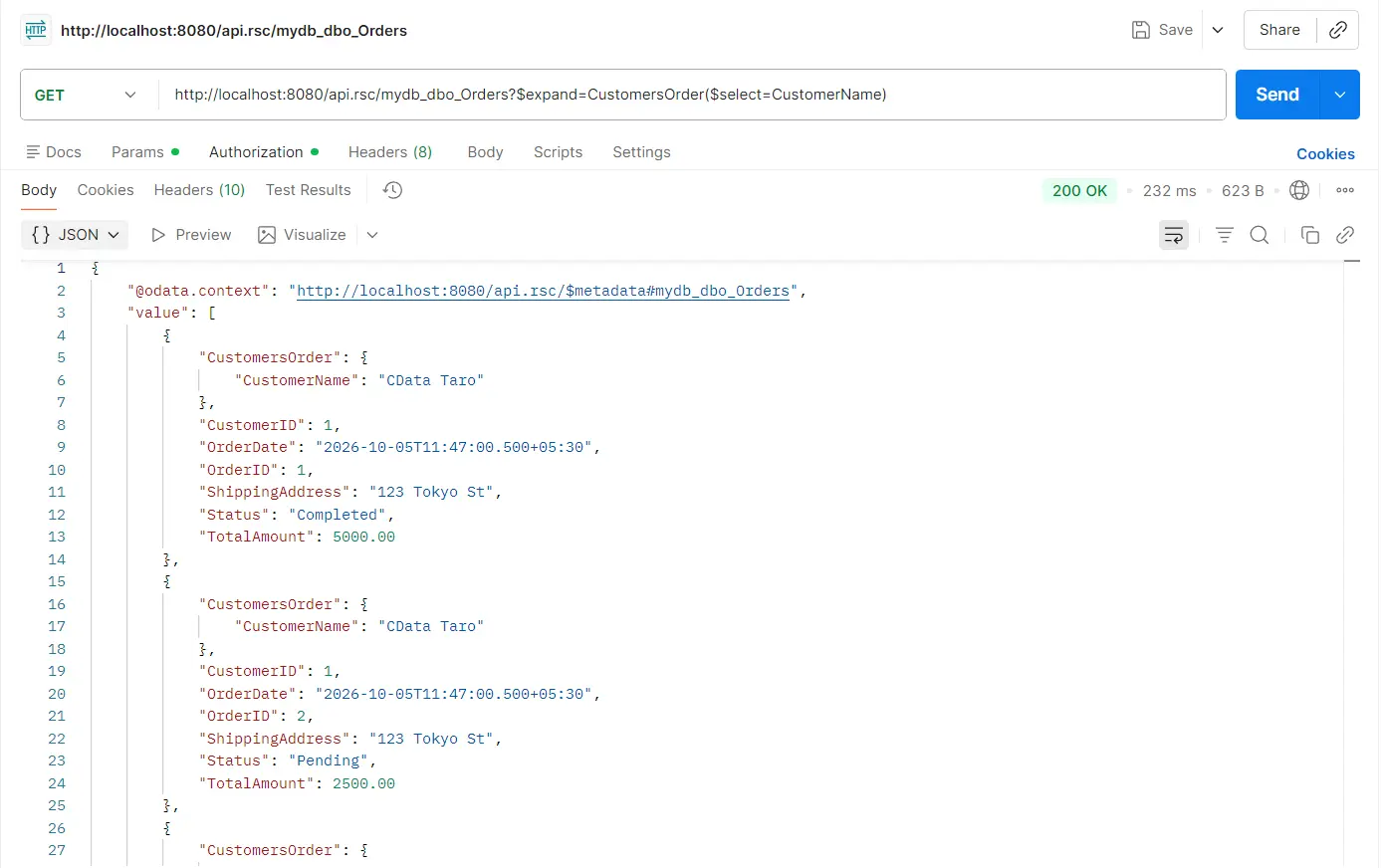
Limit which columns return with $select:
GET http://localhost:8080/api.rsc/mydb_dbo_Orders?$expand=CustomersOrder($select=CustomerName)
The nested CustomersOrder object now contains only CustomerName. Use this when the related table has many columns and you need just one or two on a given screen.
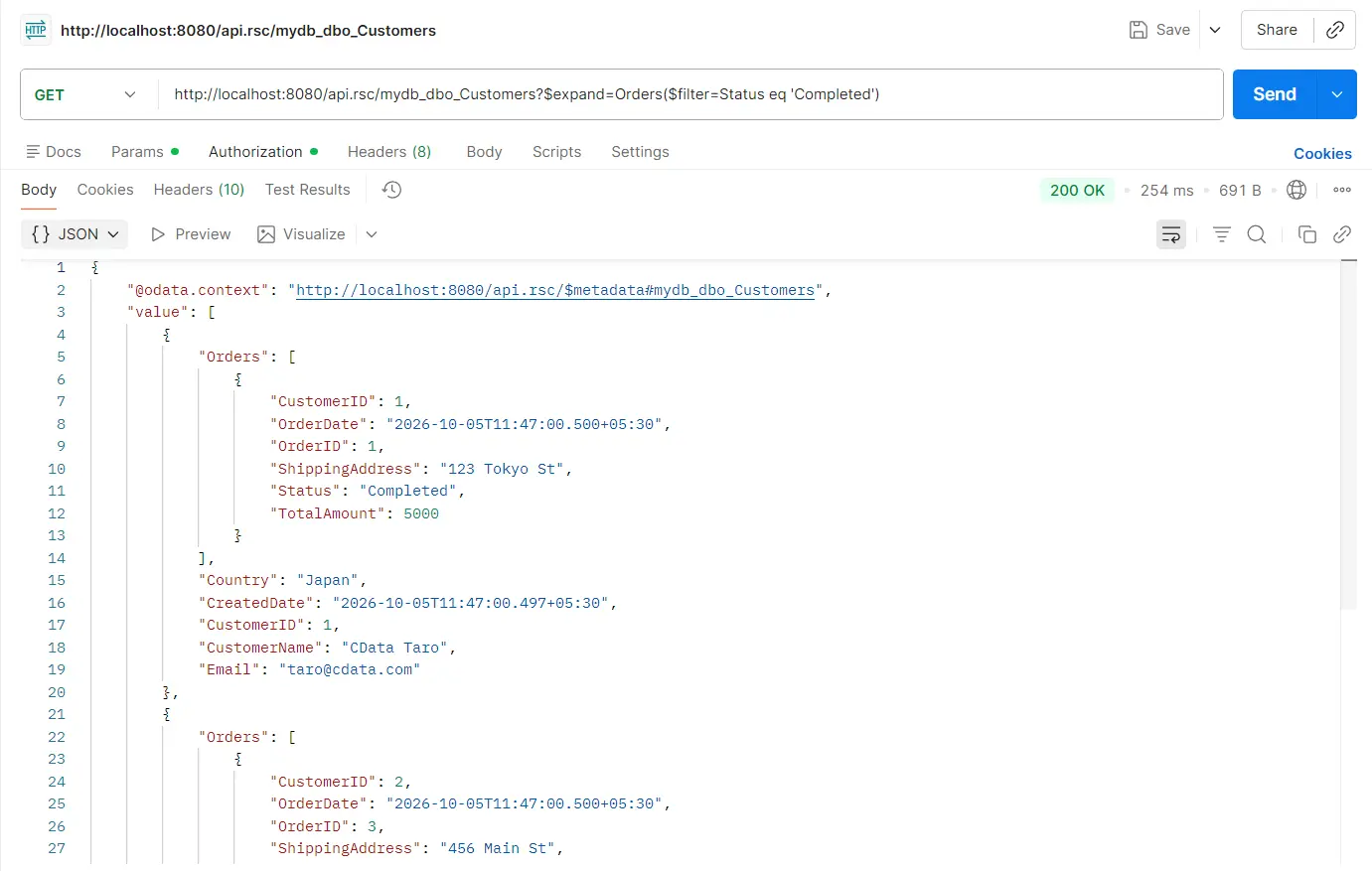
Filter the related rows with $filter:
GET http://localhost:8080/api.rsc/mydb_dbo_Customers?$expand=Orders($filter=Status eq 'Completed')
Each customer's Orders array now includes only their completed orders, which is useful for dashboards that should not surface pending orders.
Common pitfalls
The asterisk matters. Omitting the asterisk on a one-to-many relationship causes API Server to treat it as many-to-one and return exactly one child per parent. The result looks almost correct, which makes this mistake easy to miss. Whenever you define a one-to-many relationship, confirm the asterisk is present.
Nested $expand is not supported. $expand cannot be nested inside another $expand. The following request is not supported:
GET http://localhost:8080/api.rsc/mydb_dbo_Customers?$expand=Orders($expand=OrderDetails)
If you need three or more levels of depth, customers, their orders, and the order details for each, use Approach B below.
Name relationships clearly. The name before the parenthesis is what you type in $expand=. Choose a descriptive, consistent name, especially when both a one-to-many and a many-to-one relationship exist between the same two tables.
Step 3: Approach B: Pre-joined SQL views for deeper hierarchies
$expand cannot nest, so parent-child-grandchild hierarchies require a different approach. Create a SQL view that already contains the joins, publish that view in API Server, and the client receives a flat result with one row per join combination.
When to use a view instead of $expand
- You need three or more levels of depth (Customers > Orders > OrderDetails > Products)
- Your client works better with flat rows than nested JSON: BI tools, spreadsheets, and CSV exports
- You need precise control over which columns appear in the response
- Your joins include aggregations, CASE statements, or window functions that OData cannot express
Create the view
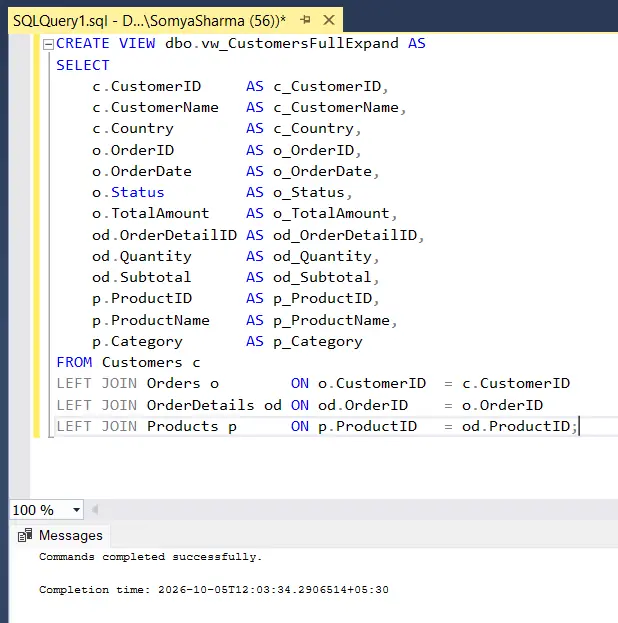
Run the following in SSMS. The GO separator is required because CREATE VIEW must be the first statement in a batch.
USE mydb;
GO

CREATE VIEW dbo.vw_CustomersFullExpand AS
SELECT
    c.CustomerID     AS c_CustomerID,
    c.CustomerName   AS c_CustomerName,
    c.Country        AS c_Country,
    o.OrderID        AS o_OrderID,
    o.OrderDate      AS o_OrderDate,
    o.Status         AS o_Status,
    o.TotalAmount    AS o_TotalAmount,
    od.OrderDetailID AS od_OrderDetailID,
    od.Quantity      AS od_Quantity,
    od.Subtotal      AS od_Subtotal,
    p.ProductID      AS p_ProductID,
    p.ProductName    AS p_ProductName,
    p.Category       AS p_Category
FROM Customers c
LEFT JOIN Orders o        ON o.CustomerID  = c.CustomerID
LEFT JOIN OrderDetails od ON od.OrderID    = o.OrderID
LEFT JOIN Products p      ON p.ProductID   = od.ProductID;
Prefix columns with c_, o_, od_, p_ so anyone reading the response can tell at a glance which source table each column belongs to.
Publish the view in API Server
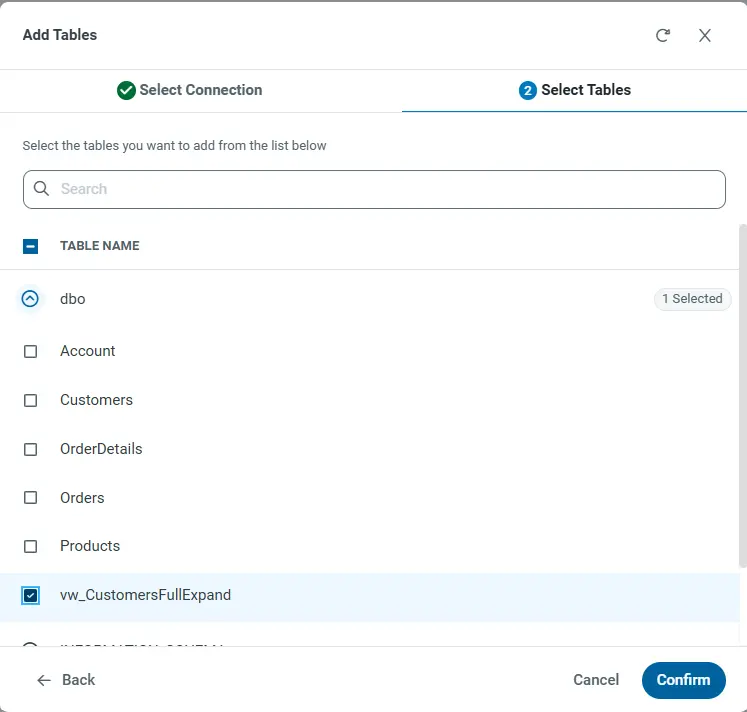
On the API tab, click Add Table. Views appear in the same list as tables. Select your SQL Server connection, locate vw_CustomersFullExpand, select it, and click Confirm.
Query the view
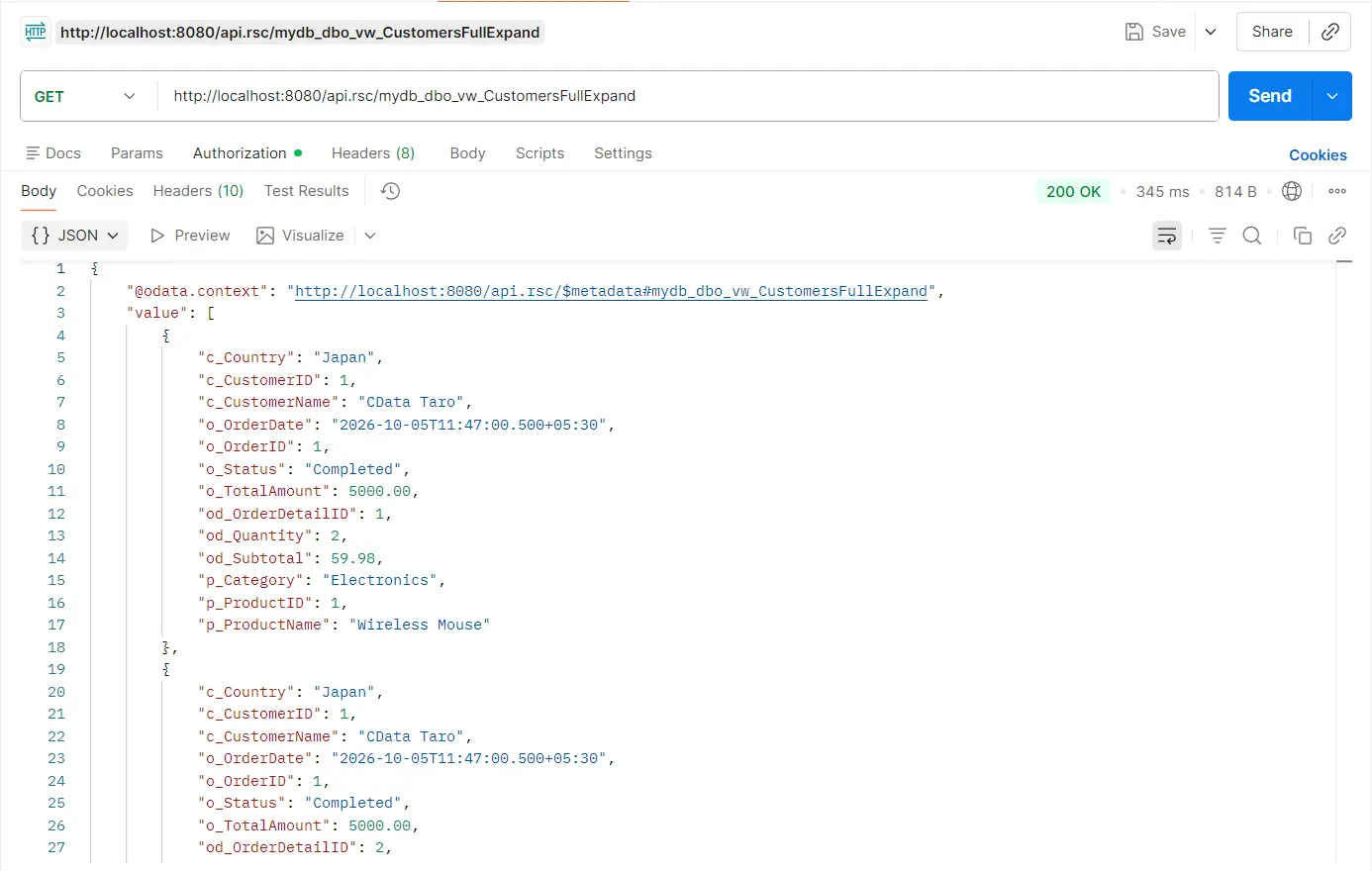
GET http://localhost:8080/api.rsc/mydb_dbo_vw_CustomersFullExpand
The result is flat, with one row per (customer, order, order detail, product) combination. The same customer and order appear across multiple rows, once per order detail, which is expected behavior for a joined view. Your client aggregates as needed, and all four tables arrive in a single request.
Step 4: Choosing between the two approaches
Both approaches work, and you can use them together in the same API Server installation. The distinction is depth and client shape.
Use $expand (Approach A) when:
- You have one or two levels of depth (parent to children, or children to parent)
- Your client is OData-aware or expects nested JSON
- Callers need to choose which relationships to expand at query time, without touching the database
- Your schema changes often and maintaining view definitions alongside it adds friction
Use a pre-joined view (Approach B) when:
- You need three or more levels of depth (nested $expand is not supported)
- Your client needs flat rows for spreadsheet, CSV, or BI tool consumption
- You need full control over which columns are returned and how joins are structured
- Your joins include aggregations, CASE statements, or window functions
When in doubt, start with $expand, which requires less infrastructure to maintain. Fall back to a view when you hit a requirement $expand cannot meet.
Streamlined data access with CData API Server
CData API Server makes it straightforward to expose related data through standard OData queries, without rewriting client code or managing custom join logic in every application. OData $expand handles one- and two-level relationships natively, and pre-joined SQL views extend that coverage to any depth your data model requires.
Start your free 30-day trial of CData API Server today and experience faster, more scalable REST API connectivity.