Salesforce contains some of the most valuable data in the enterprise, from customer records and sales opportunities to service interactions and marketing performance. Yet accessing that data from reporting tools, analytics platforms, custom applications, and data integration workflows often requires navigating APIs, authentication requirements, and platform-specific limitations.
An ODBC connection simplifies the process by presenting Salesforce data through a standard SQL interface that thousands of applications already understand. Instead of building custom integrations for every tool, organizations can connect Salesforce to business intelligence platforms, reporting tools, ETL solutions, spreadsheets, and custom applications using a familiar and widely supported connectivity standard.
This guide walks through configuring a Salesforce ODBC connection using the CData Salesforce ODBC Driver, covering installation, authentication (including OAuth and SSO), Bulk API configuration, and the performance tuning that matters most for reporting and analytics workloads.
Why use ODBC for Salesforce?
ODBC (Open Database Connectivity) is a decades-old standard, which is exactly what makes it useful here. Every major BI tool, ETL platform, and reporting application already has ODBC support built in. When you expose Salesforce through ODBC, you don't have to build or maintain a separate integration for each tool in your stack. One driver, one connection, and your existing applications can query Salesforce as if it were any other relational data source.
The practical benefit is less custom code. Teams that build direct API integrations end up maintaining authentication logic, pagination handling, error recovery, and schema mapping per tool. Multiply that by five or ten consuming applications and you're spending engineering time on plumbing instead of analysis. An ODBC driver consolidates that work into a single, managed layer.
The CData Salesforce ODBC Driver extends these benefits by providing real-time connectivity to Salesforce while handling API communication, authentication, security, metadata management, caching, and performance optimization behind the scenes. The driver is fully ODBC 3.8 compliant, supports Salesforce-specific features like Bulk API and relationship queries, and runs on Windows, Linux, and macOS environments.
Before you begin
You'll need four things in place before configuring the connection:
A Salesforce account with API access turned on
Permissions on the Salesforce objects you want to query
Admin rights to install ODBC drivers on the machine
The CData Salesforce ODBC Driver installed
Check your Salesforce edition before you start. API access ships natively with Enterprise, Unlimited, and Developer editions. Professional Edition may require purchasing API access separately, and this is a common gotcha that surfaces only after the driver is installed and authentication fails with an unhelpful error.
Step 1: Install the Salesforce ODBC driver
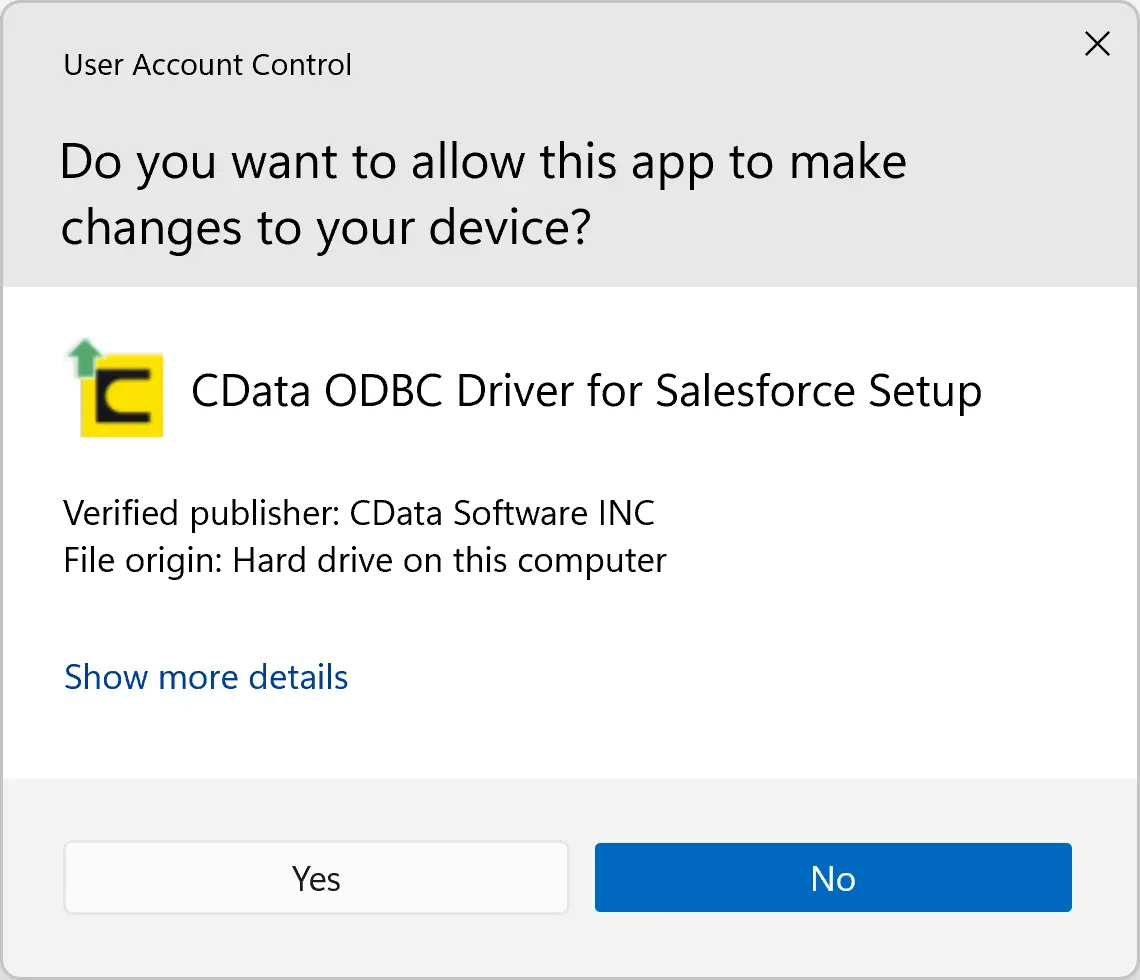
Download and install the CData Salesforce ODBC Driver on the machine where you'll create the connection. The installer registers a Data Source Name (DSN) automatically, and you manage it through the ODBC Administrator on Windows.
Windows ships with both a 32-bit and 64-bit ODBC Administrator, and this catches more people than it should. You need the version that matches your application's architecture. Connecting from 64-bit Power BI Desktop? Use the 64-bit administrator. Connecting from a 32-bit Excel add-in? Use the 32-bit version. Getting this wrong produces "driver not found" errors that have nothing to do with the actual driver installation.
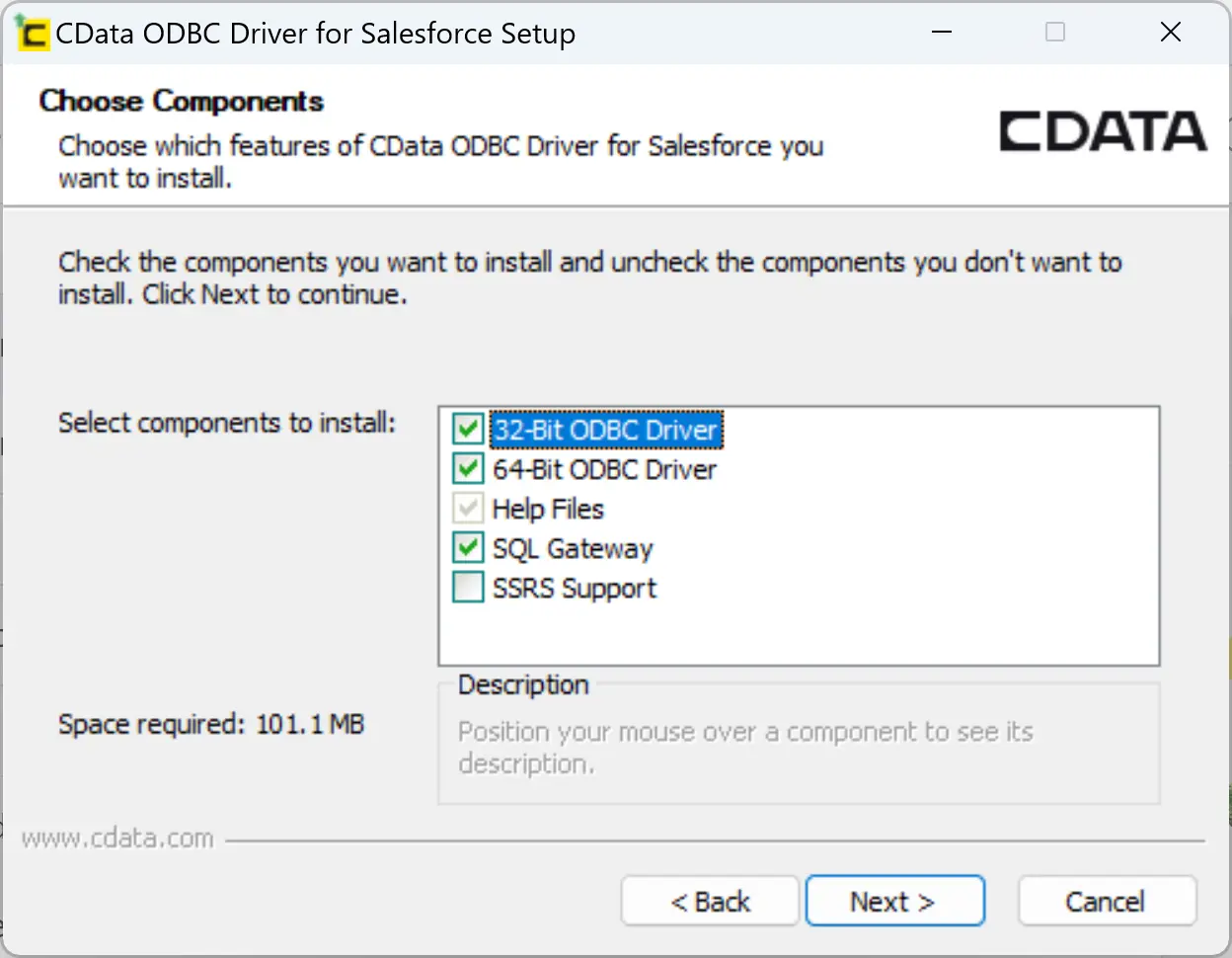
To configure the DSN on Windows:
Open ODBC Data Sources from the Start menu.
Select the 32-bit or 64-bit administrator to match your application.
Go to the System DSN tab.
Select the Salesforce data source.
Click Configure.
Step 2: Choose your authentication method
The authentication method you pick affects security, maintenance burden, and how often connections break in production. The CData driver supports OAuth 2.0, OAuth Password Grant, OAuth JWT, Azure AD SSO, Okta SSO, OneLogin SSO, PingFederate SSO, ADFS SSO, and traditional username/password with security tokens.
For most production deployments, OAuth should be the preferred option. It avoids embedding credentials in connection strings, supports token refresh, and aligns with how Salesforce itself recommends authenticating API clients. Username/password authentication still works, but it requires a security token appended to the password, breaks when Salesforce enforces MFA (which is now the default for most orgs), and creates a credential management headache at scale.
Step 3: Configure OAuth authentication
OAuth authenticates through Salesforce's browser-based authorization flow, so passwords never pass through the client application.
Set the authentication scheme to OAuth in the DSN configuration.
Initiate the connection.
Sign in through Salesforce's browser-based authorization flow.
Grant access.
The driver stores and manages the resulting access and refresh tokens going forward.
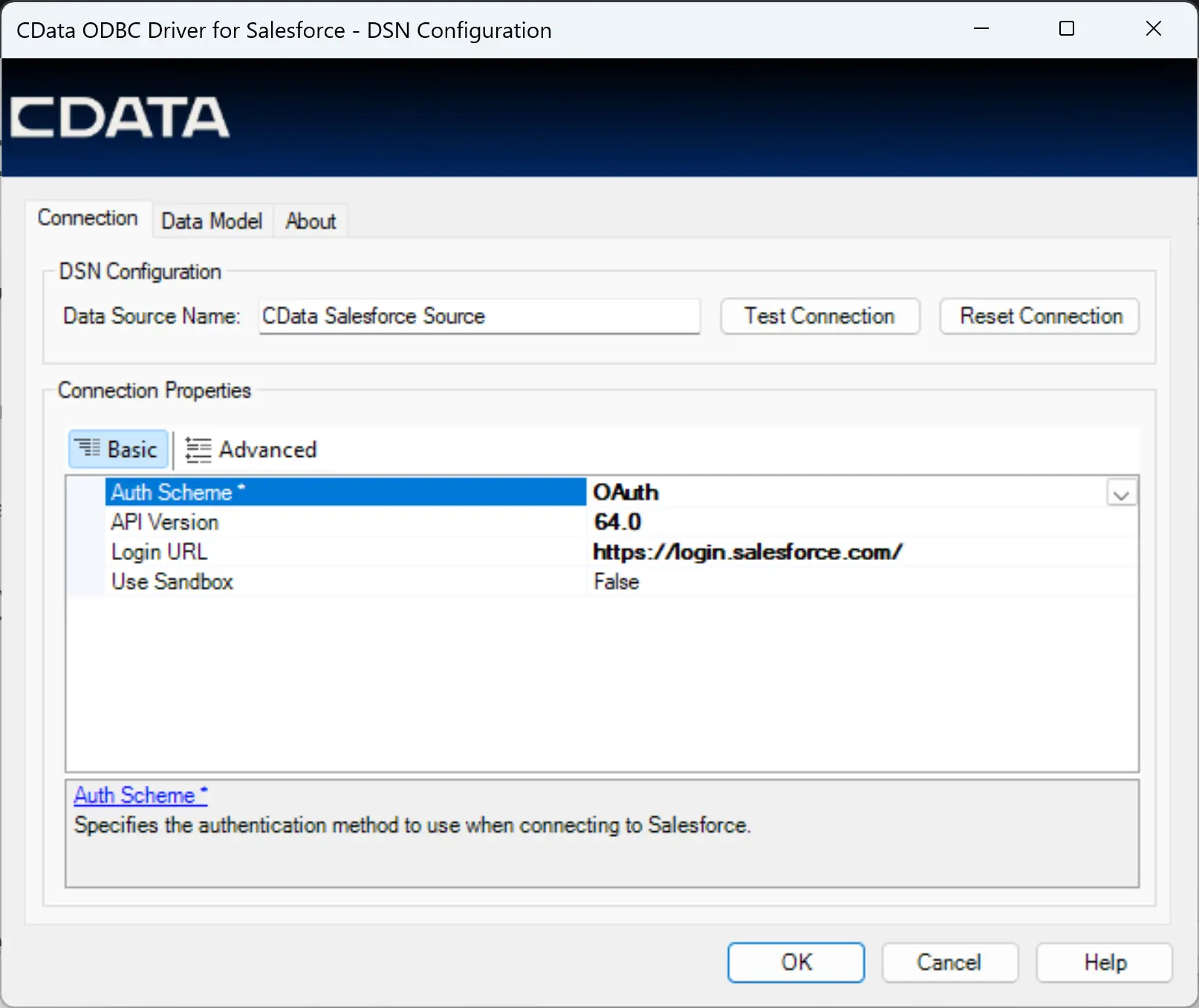
The CData Salesforce ODBC Driver includes embedded OAuth credentials that simplify desktop authentication scenarios, reducing the amount of manual configuration required. It can also use custom Salesforce Connected Apps when organizations need tighter governance or custom security controls.
When creating a custom Salesforce Connected App, Salesforce recommends enabling OAuth settings, specifying a callback URL, and including refresh token permissions so that the application can renew access automatically without requiring repeated user interaction.
Supporting enterprise SSO environments
If your organization authenticates through a centralized identity provider instead of direct Salesforce login, the driver works with Azure AD, Okta, OneLogin, PingFederate, and ADFS. Your existing identity infrastructure handles authentication, and the security policies you've already set up (MFA requirements, conditional access, session limits) carry through to ODBC connections without extra configuration on the driver side.
Step 4: Configure sandbox or production access
By default, the driver connects to Salesforce production environments.
If you're working in a Salesforce sandbox, you'll need to enable sandbox access during configuration. This ensures queries and updates are directed to the correct Salesforce environment.
Many organizations maintain separate development, testing, and production Salesforce instances. Using separate DSNs for each environment can help prevent accidental changes and simplify lifecycle management.
Step 5: Test the connection
Test before building anything on top of the connection. A successful test tells you that authentication works, the Salesforce APIs are reachable from this machine, firewall rules aren't blocking outbound traffic, and the driver can pull object metadata.
Once connected, the driver exposes Salesforce objects as relational tables. You can browse them in your BI tool's schema navigator or run SQL directly. For example:
SELECT Name, Industry
FROM Account
WHERE Industry = 'Technology'
The driver translates this into the corresponding Salesforce API call, handles pagination if the result set is large, and returns rows in standard ODBC format. From the application's perspective, it looks and behaves like querying a database table.
Step 6: Use Bulk API for large data volumes
As Salesforce datasets grow, query performance becomes increasingly important.
For large-scale data extraction, loading, and synchronization scenarios, Salesforce's Bulk API can significantly improve throughput compared to standard API operations.
The CData Salesforce ODBC Driver includes Bulk API support and automatically handles much of the complexity associated with batch processing. The driver can translate batch operations into efficient Salesforce bulk requests while exposing a familiar SQL interface to applications.
Use Bulk API when you're loading Salesforce data into a warehouse, refreshing a large BI dataset, syncing CRM records across systems, or processing bulk updates. For interactive dashboard queries returning a few hundred rows, standard API is faster because it avoids the job-creation overhead.
Recent versions of the driver also support Salesforce Bulk API v2 capabilities, providing additional scalability options for modern integration workloads.
Rather than forcing developers to work directly with Salesforce bulk jobs, batches, and asynchronous APIs, the driver abstracts these details and allows teams to continue working through standard SQL and ODBC interfaces.
Step 7: Optimize performance for reporting and analytics
After establishing connectivity, performance tuning can help deliver a better user experience for analytics and reporting workloads.
Be specific about what you select. A SELECT * on the Account table retrieves every field, including long text fields, formula fields that trigger server-side computation, and fields you don't need. This wastes API calls (Salesforce counts fields toward your API usage) and slows down response times. Select only the columns your report or dashboard actually uses and add WHERE clauses to limit the rows.
-- Instead of SELECT * FROM Account, use:
SELECT Id, Name, Industry
FROM Account
WHERE Industry = 'Technology'
Use the driver's caching for repeated queries. If multiple users hit the same dashboard and the underlying Salesforce data doesn't change every minute, caching avoids redundant API calls. The CData driver supports configurable caching with time-based expiration, which is particularly useful for dashboards that auto-refresh on an interval.
Match your API strategy to the workload. Interactive dashboards need low-latency responses, so standard API with caching works best. ETL jobs that extract large volumes should use Bulk API. Enterprise reporting environments that serve many users can benefit from shared DSNs with centralized authentication, so your Salesforce admin manages access in one place rather than tracking individual credentials.
Common Salesforce ODBC connection issues
Authentication failures are the most frequent problem, and they usually come down to one of a few causes: expired OAuth tokens (check that refresh_token scope is granted), a Connected App with insufficient permissions, incorrect client credentials, or an SSO configuration that isn't passing the right attributes. Start by verifying the Connected App settings in Salesforce Setup.
API access restrictions catch teams who can log in to Salesforce through the browser but get empty results or errors through the driver. Some Salesforce editions require additional API licensing or permissions. If users can log in successfully but cannot retrieve data, verify that API access is enabled for the account and profile.
Firewall and network issues show up in locked-down corporate environments. ODBC connections need outbound HTTPS access to Salesforce endpoints, and SSO configurations need the identity provider's endpoints reachable too. If the driver configuration looks correct and connections still fail, work with your network team to verify that outbound traffic to the required domains is allowed.
Bring Salesforce data to every application
Salesforce is often one of the most important systems in the enterprise, but its value increases dramatically when its data can be accessed by the broader analytics, reporting, and integration ecosystem.
The CData Salesforce ODBC Driver handles the hard parts — API translation, authentication, token management, Bulk API orchestration, and caching — so you can focus on what you're actually trying to do with the data rather than how to extract it.
Download the CData Salesforce ODBC Driver and try it yourself today!




