





Developer Guide: AI-Assisted .NET Development with the CData CLI
Build .NET applications faster with AI-assisted development. This guide walks you through using the CData CLI with an AI coding tool like Cursor to generate production-ready C# code that connects to live data using CData ADO.NET Providers.
The CData CLI gives your AI coding assistant a schema-aware command-line interface to your actual data source. Instead of guessing table and column names, the assistant runs cdatacli commands to discover the real schema and validate SQL before it writes a line of code. The result is accurate ADO.NET code that you can run in production using CData ADO.NET Providers - no hallucinated field names.
By the end of this guide, you'll have a working C# console application that:
- Connects to Google Sheets using the CData ADO.NET Provider
- Queries customer data using standard ADO.NET patterns
- Displays results in a formatted table
Architecture overview
The CData CLI bridges AI-assisted development with production-ready data access:
┌───────────────────┐     ┌───────────────────┐     ┌───────────────────┐
│  AI Coding Tool   │     │     CData CLI     │     │   Google Sheets   │
│   (Cursor, etc.)  │────>│  (schema + SQL)   │────>│    (live data)    │
│                   │<────│                   │<────│                   │
└───────────────────┘     └───────────────────┘     └───────────────────┘
          │
          │  generates C# code
          v
┌───────────────────┐     ┌───────────────────┐     ┌───────────────────┐
│   Your .NET App   │     │   CData ADO.NET   │     │   Google Sheets   │
│                   │────>│     Provider      │────>│    (live data)    │
│   (production)    │<────│                   │<────│                   │
└───────────────────┘     └───────────────────┘     └───────────────────┘
How it works:
- The CData CLI connects to your data source and exposes schema and query commands to your AI assistant
- The assistant runs those commands to discover the real schema and generate accurate ADO.NET code with correct table and column names
- Your production application uses the CData ADO.NET Provider - same schema, same SQL syntax
Prerequisites
Before you begin, ensure the following are installed:
- .NET 6.0 SDK or later - Download from Microsoft
- Java 17 or later - required to run the CData CLI. Download from Adoptium
- Cursor IDE - Download Cursor (or another AI coding tool that can run terminal commands)
- CData CLI - Download the CData CLI
- CData ADO.NET Provider for Google Sheets - Download
- A Google account for accessing Google Sheets
Step 1: Set up sample data in Google Sheets
We'll use a sample Google Sheet containing sample CRM data to demonstrate the workflow.
- Navigate to the sample CRM spreadsheet
- Click File > Make a copy to save it to your Google Drive
- Give it a memorable name (e.g., "demo_organization") - you'll need this later
The spreadsheet contains four sheets:
- account - Company information (Name, Industry, AnnualRevenue, NumberOfEmployees)
- opportunity - Sales pipeline data (StageName, Amount, Probability, CloseDate)
- tickets - Support cases (Subject, Priority, Status, CreatedAt)
- usage - Product usage statistics (PRODUCT_GROUP, S_STANDARDJOBRUNS, S_RECORDSAFFECTED)
The CData CLI exposes each sheet as a table named
Step 2: Install the CData CLI
The CData CLI is a single command-line tool, cdatacli, that manages CData drivers, saved connections, and queries. Run the one-line installer for your OS:
- macOS:
curl -fsSL https://downloads.cdata.com/cdatabuilds/builds/free/cdatacli/install-cdatacli-macos.sh | bash - Linux:
curl -fsSL https://downloads.cdata.com/cdatabuilds/builds/free/cdatacli/install-cdatacli-linux.sh | bash - Windows (PowerShell):
irm https://downloads.cdata.com/cdatabuilds/builds/free/cdatacli/install-cdatacli-windows.ps1 | iex - Confirm the CLI is working:
cdatacli --version
The CLI runs on Java 17 or later. If you see a message that Java is required, install a JDK (see Prerequisites) and make sure java is on your PATH.
Step 3: Download and license the Google Sheets driver
The CLI can find and download CData drivers for you - no separate installer required.
- Search the driver catalog to find the Google Sheets driver:
cdatacli drivers search --driver "sheets"Note the artifactId in the output - googlesheets-jdbc.
{ "drivers" : [ { "groupId" : "cdata", "artifactId" : "googlesheets-jdbc", "name" : "CData JDBC Driver For Google Sheets 2025", "version" : "25.0.9539", "url" : "https://maven.cdata.com/p/jdbc/cdata/googlesheets-jdbc/25.0.9539/googlesheets-jdbc-25.0.9539.jar" } ] } - Download the driver:
cdatacli drivers download --artifact-id googlesheets-jdbc - Activate a license. Use your license key, or TRIAL for a 30-day evaluation:
cdatacli drivers activate "Google Sheets" --name "Jane Smith" --email "[email protected]" --trial - Confirm the driver is installed and activated:
cdatacli drivers list{ "drivers" : [ { "name" : "Google Sheets", "product" : "CData JDBC Driver For Google Sheets 2025", "version" : "25.0.9539.0", "activated" : true } ] }
Step 4: Create a saved connection
A saved connection stores your data source settings so the CLI - and your AI assistant - can reuse them. Google Sheets uses OAuth, so creating the connection launches a browser for you to authorize access. The CLI then stores the resulting token and reuses it automatically; you only sign in once.
- Create the connection. The GETANDREFRESH setting tells the driver to open your browser and obtain a token:
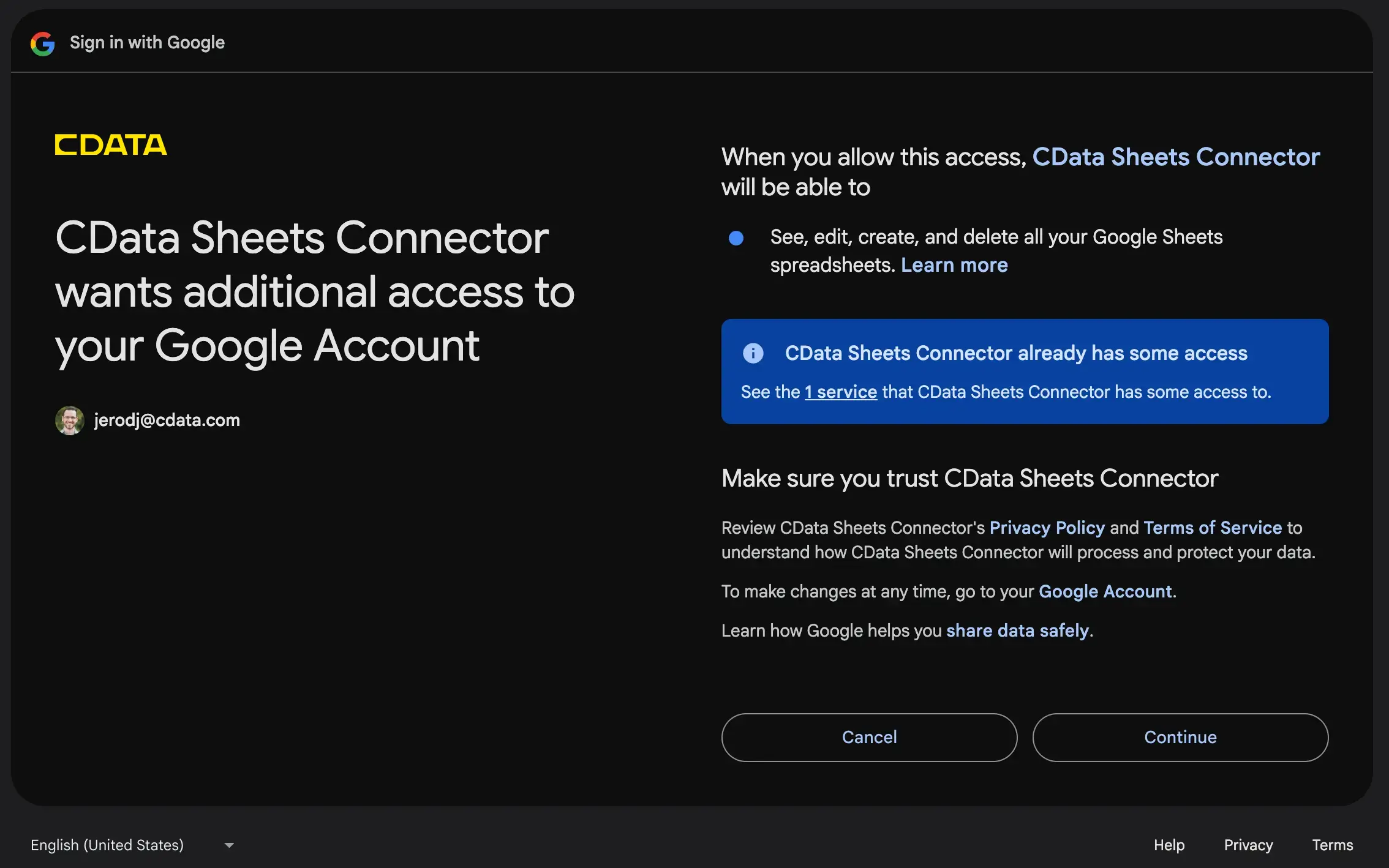
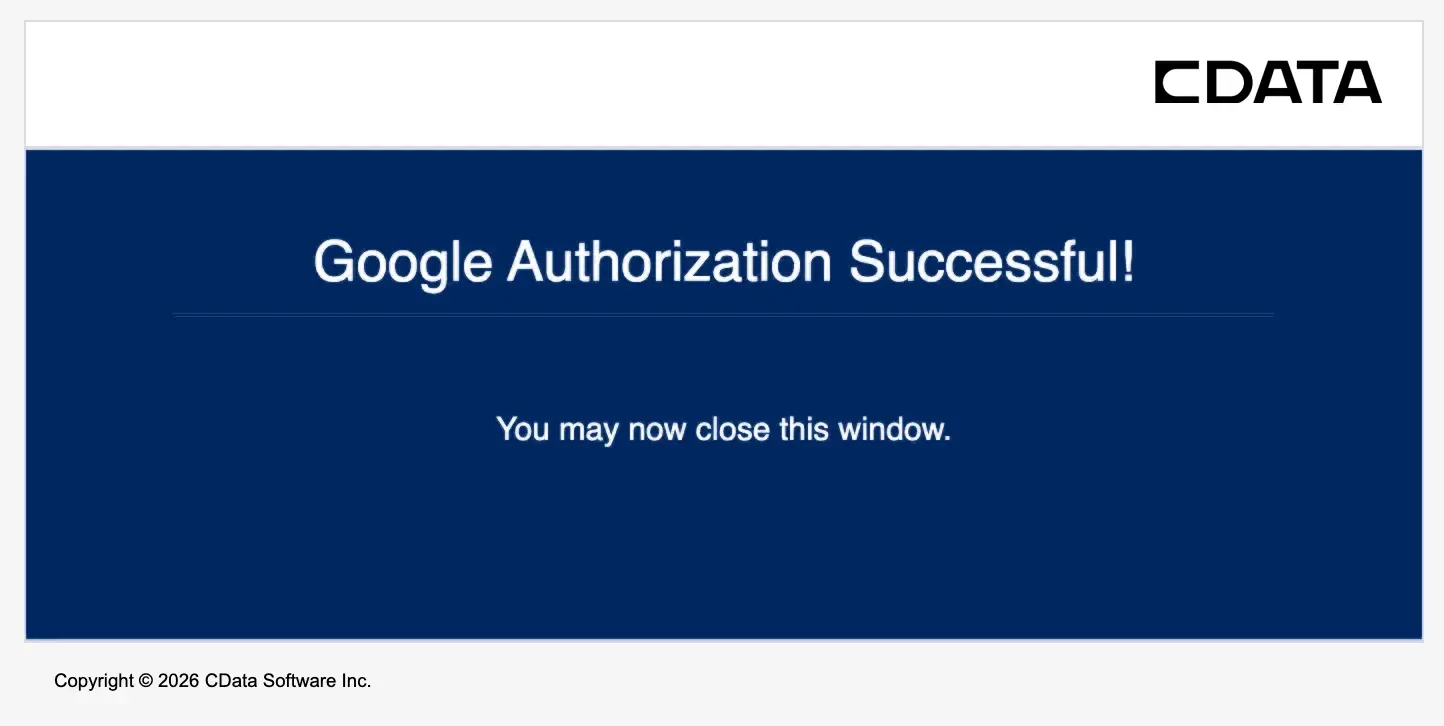
cdatacli connection create --name gsheets --driver "Google Sheets" --connectionstring "Spreadsheet=demo_organization;InitiateOAuth=GETANDREFRESH" - Your browser opens to Google's consent screen. Click Continue to grant access. The command finishes once you've authorized.
- Verify the connection was saved (secrets are stored encrypted, never in plain text):
cdatacli connection list
Step 5: Give your AI assistant the CLI skill
The CLI ships per-driver guidance that teaches your AI assistant how to discover schema and run SQL through cdatacli. Saving this guidance as a project rule means the assistant always has accurate context.
- Generate the skill guidance for Google Sheets and save it as a Cursor project rule:
cdatacli drivers skill "Google Sheets" > .cursor/rules/cdata-googlesheets.mdThe output is a Markdown skill that tells the assistant which cdatacli commands to run for schema discovery and query validation against your gsheets connection.
- Confirm the assistant can see the schema by running a metadata command yourself:
cdatacli metadata columns --connection gsheets --table "demo_organization_account"This lists the real columns - Name, Industry, AnnualRevenue, and more - exactly as your assistant will discover them.
{
  "columns" : [
    { "COLUMN_NAME" : "Name",          "TYPE_NAME" : "VARCHAR" },
    { "COLUMN_NAME" : "Industry",      "TYPE_NAME" : "VARCHAR" },
    { "COLUMN_NAME" : "AnnualRevenue", "TYPE_NAME" : "BIGINT" }
  ]
}
Step 6: Build and run the application with Cursor
- Create a new folder for your project and open it in Cursor (keep the .cursor/rules/cdata-googlesheets.md rule from Step 5 in the project)
- Install the CData ADO.NET Provider for Google Sheets - this is what your production code uses at runtime. During installation, enter your license key (or use TRIAL for a 30-day evaluation).
- Open Cursor's AI chat pane and prompt it to build the application. Because the CLI skill is in your project rules, the assistant will run cdatacli to confirm the schema first:
Build a C# console application that connects to Google Sheets using the CData ADO.NET Provider. Use the CData CLI to discover the schema of my gsheets connection, then query the account sheet and display all accounts with their Name, Industry, and AnnualRevenue in a formatted table. Store the connection string in an environment variable for security.
- Cursor generates a .NET project that references the CData ADO.NET Provider and uses correct table and column names (verified against the live schema), reading the connection string from an environment variable.
- Set the connection string, copy the license file to the output directory, then build and run:
set GOOGLESHEETS_CONN="Spreadsheet=demo_organization;InitiateOAuth=GETANDREFRESH;"
copy "C:\Program Files\CData\CData ADO.NET Provider for Google Sheets\lib\System.Data.CData.GoogleSheets.lic" .\bin\Debug
et6.0\
dotnet build
dotnet run
On macOS/Linux, use export instead of set, and copy the .lic file from your provider's installation directory (e.g., /Applications/CData/ or /opt/cdata/) to the build output.
Example output
Name                        Industry            AnnualRevenue
------------------------------------------------------------
Acme Corporation            Technology          2500000
Global Industries           Manufacturing       15000000
StartupCo                   Software            500000
Enterprise Inc              Finance             50000000
What's next?
You've built a working .NET application using AI-assisted development. The same pattern works for any of the hundreds of data sources supported by CData ADO.NET Providers.
Try these next steps:
- Add CRUD operations (Create, Update, Delete) to your application
- Query multiple sheets and join data
- Build a web dashboard using ASP.NET with live data
- Connect to a different data source like Salesforce or Jira - just download that driver with the CLI and repeat
Troubleshooting
If you encounter issues, try these common solutions:
- "Java is required" when running cdatacli - Install a Java 17+ JDK (see Prerequisites) and confirm java -version works in the same terminal.
- OAuth authentication fails or the browser doesn't open - Ensure pop-ups are enabled and that you can reach a browser from the machine running the CLI. Re-run cdatacli connection create to retry the consent flow.
- License file not found error - The driver used by the CLI and the ADO.NET Provider are licensed separately. Activate the CLI driver with cdatacli drivers activate, and confirm the provider's .lic file is copied to your application's output directory (e.g., bin/Debug/net6.0/).
- Connection string errors - Verify the spreadsheet name matches your copy exactly (case-sensitive) and that you have access to it in Google Drive.
- AI generates incorrect column names - Confirm the .cursor/rules/cdata-googlesheets.md rule is present, and ask the assistant to re-run cdatacli metadata columns before generating code.
ADO.NET development with CData
The CData CLI and CData ADO.NET Providers share the same data model, so the SQL your assistant validates during development works identically in production. This eliminates the disconnect between AI-generated code and real-world data access.
The CLI is model agnostic - it works with any AI model your coding tool supports. Whether you're using GPT-4, Claude, or another model in Cursor, the assistant gets the same accurate schema by running the same commands.
Ready to accelerate your .NET development? Download the CData CLI and get a free trial of the CData ADO.NET Provider for Google Sheets to get started.