We recently showcased a new addition to our CData Labs offerings, the CData Connect AI Connector for Looker Studio, which simplifies connecting to your CData Connect AI instance (and therefore a wide range of SaaS, Big Data, and NoSQL sources) from Looker Studio (formerly Google Data Studio).
We are happy to announce that we are expanding CData Labs with the newly published G Suite Marketplace CData Connect AI Connector, which offers straightforward connectivity to all of your data from Google Sheets (through CData Connect AI).
In this article, we walk through configuring the CData Connect AI Connector and including live data from the Connect AI Connector in your Google Sheets workbooks, with links to a full walk-through and more information.
Configuring the Connect AI Connector
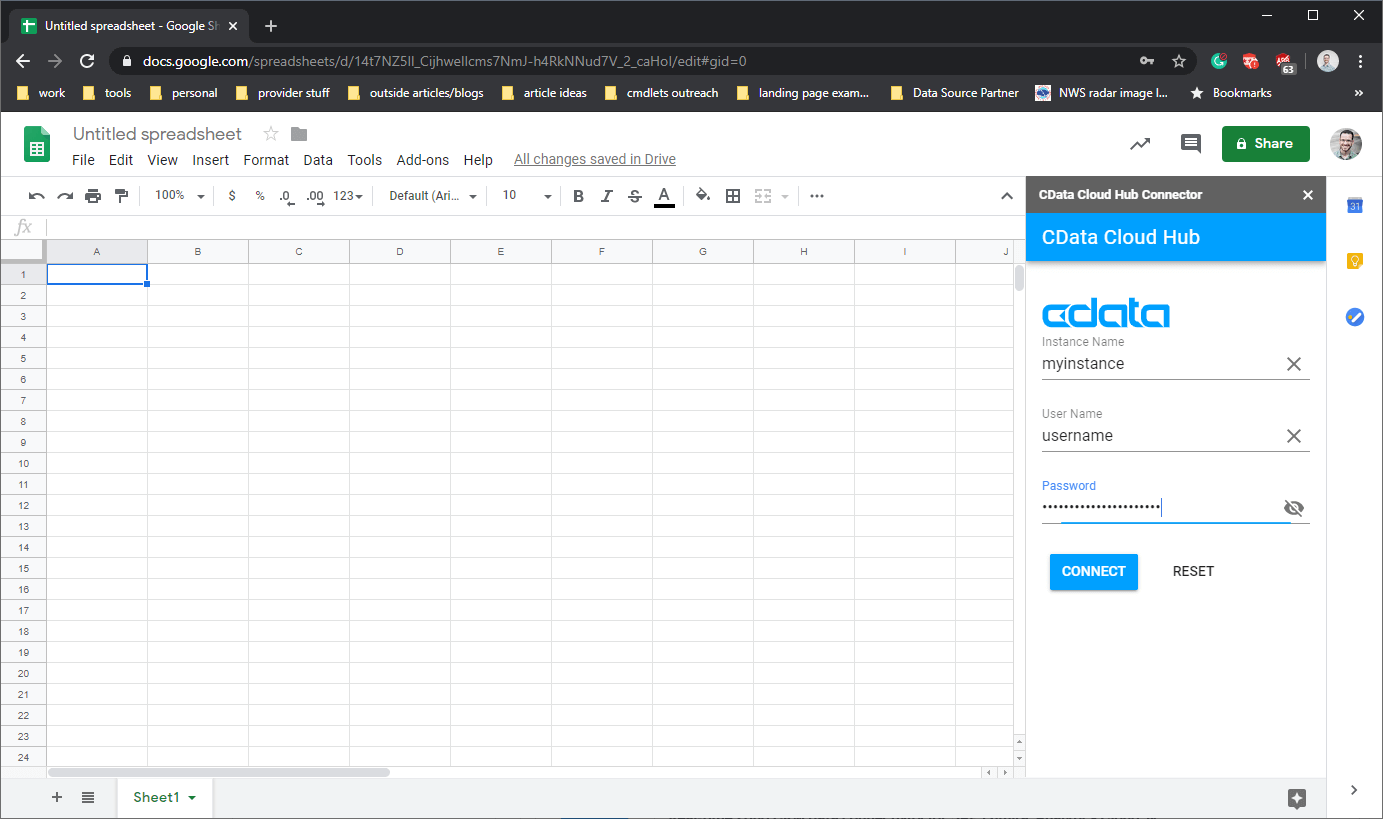
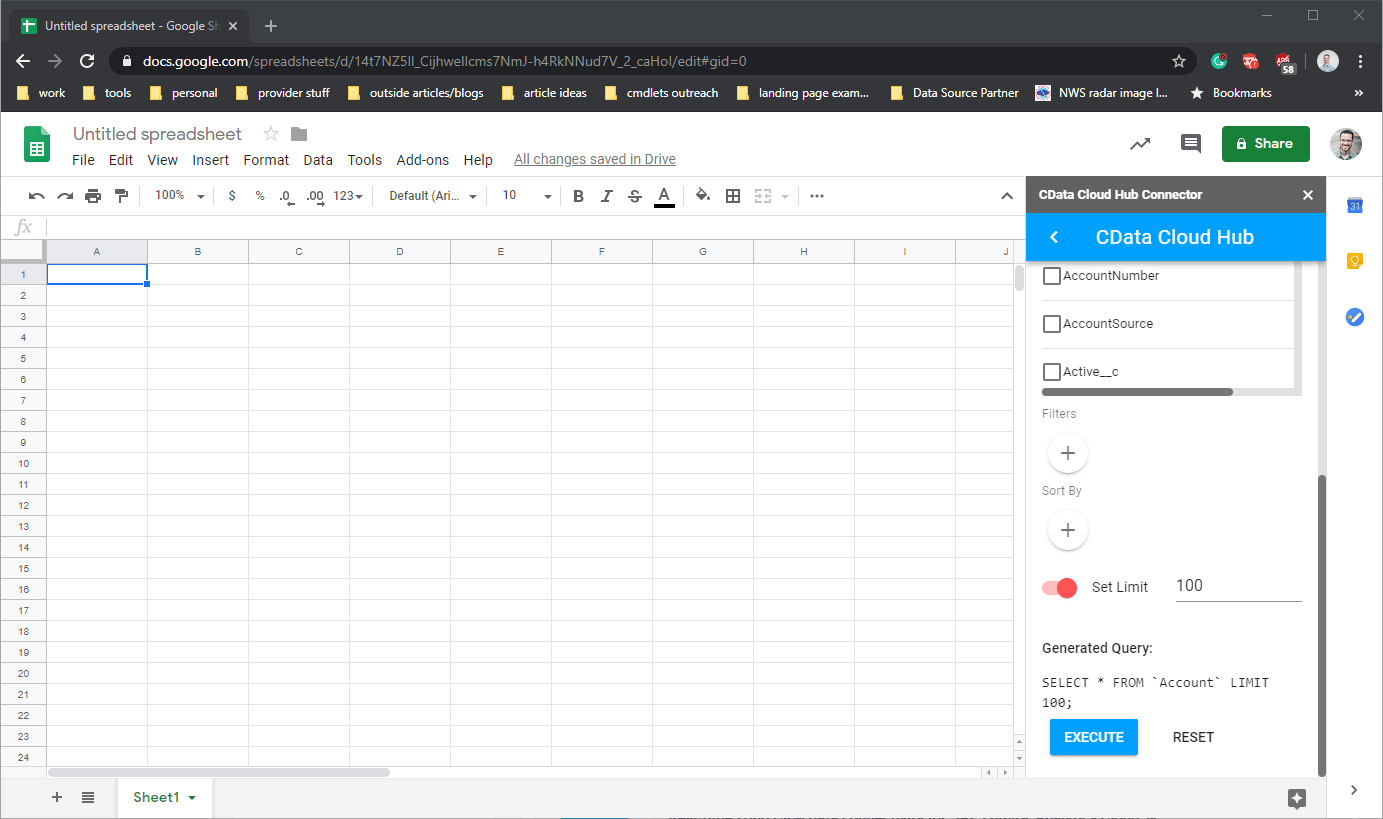
To connect to your Connect AI instance from Google Sheets, open Google Sheets, install and open the Connect AI Connector Add-On, and enter your Connect AI credentials. Once you authenticate, select a table to display and begin working with live data in Google Sheets.
Installing the Add-on
Configuring the Connector
Selecting a Table
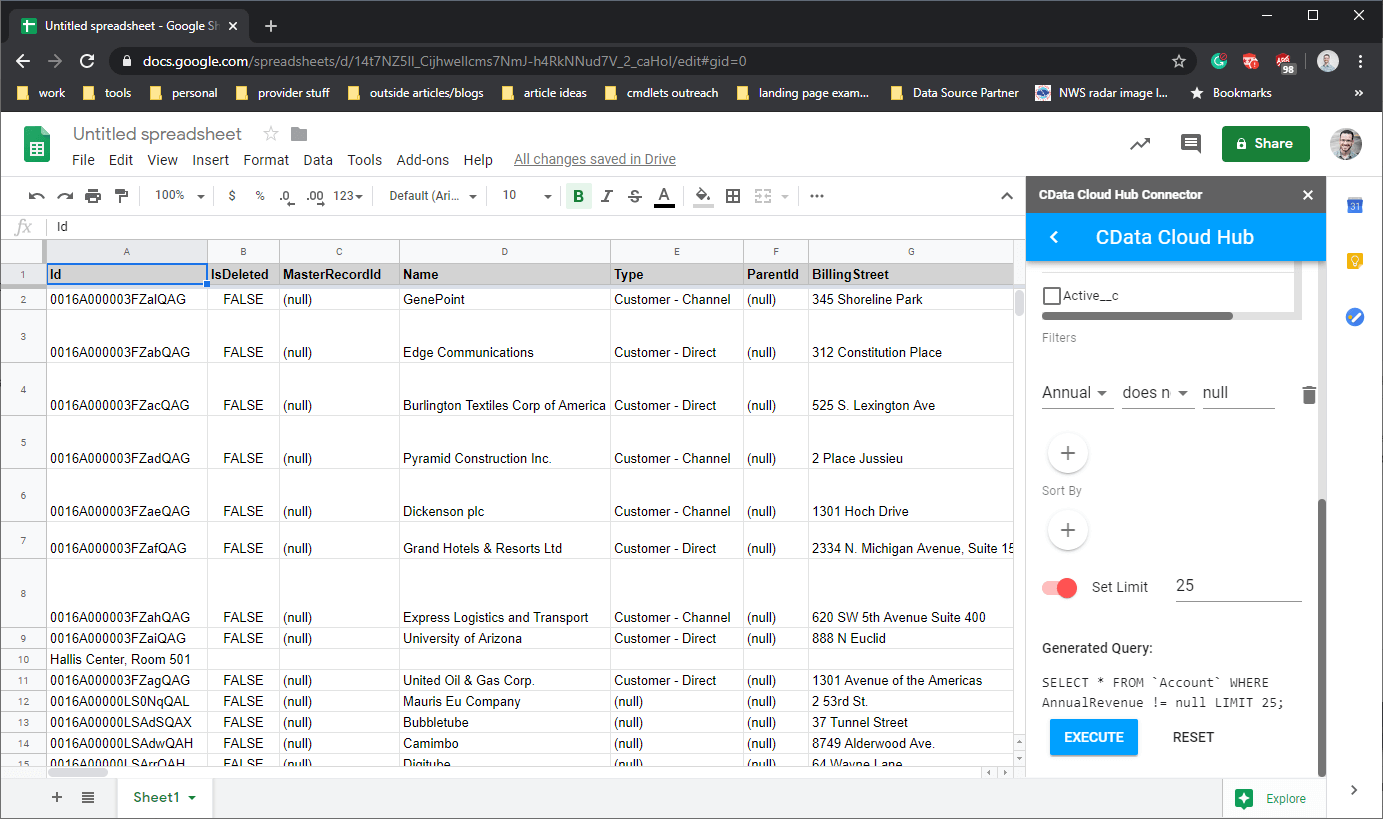
Working with Connect AI Data in Google Sheets
Once connected, you can pull data from the Connect AI Connector into Google Sheets using the table and field names while applying filters, ordering, and limits.
More Information & Free Trial
At this point, you can see how the CData Connect AI can be used to work with SaaS, Big Data, and NoSQL sources from Google Sheets. As always, our Support Team is available to answer any questions you might have.
Request a free trial and start working with your Connect AI data in Looker Studio today.





